




 Previous
Before deleting a custom paper, confirm that no one is modifying it on Web Image Monitor or on the color controller.
You can back up custom papers to the library archive. For details about backing up custom papers, see Saving Custom Papers to the Library Archive.
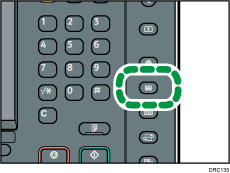
 Press the [Paper Setting] key.
 Press [Edit Custom Paper].
 Press [Delete].
 Select the custom paper that you want to delete.
Press [ Previous] or [
 Next] to scroll through the list to find the paper that you want to delete.
You can select several sheets of custom paper.
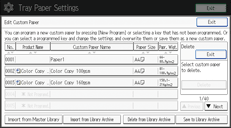
 Press [Delete].
 Press [Yes].
 Press [Exit].
 Press the [Paper Setting] key.

You cannot delete a custom paper that is currently assigned to a paper tray.
You cannot delete a custom paper that is being used with the color controller. For details, see the manual provided with the color controller.


