




 Previous
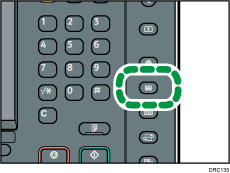
 Press the [Paper Setting] key.
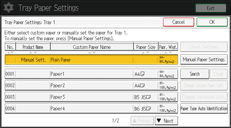
 Select the number of the tray whose paper settings you want to specify.
 Press [Paper Type Auto Identification].
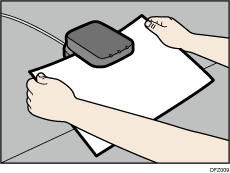
 Insert paper into the Media Identification Unit, and then remove it.
Hold the edges of the paper with both hands when inserting the paper.
Keep the paper flat as you pull it out.
The list of custom paper whose configurations are similar to those of the scanned paper appears.
 Select the custom paper you want to use, and then press [OK].
The custom papers that can be used in the selected tray appear.
Press [ Previous] or [
 Next] to scroll through the list to find a paper that you want to select.
After selecting a custom paper, you can check its type and color by pressing Check Settings.
 Press the [Paper Setting] key.

If you want to change the custom paper settings, press [Change Custom Paper Sett.] in Step 3.


