




 Previous
 Press the [Paper Setting] key.
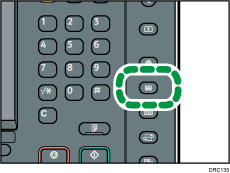
 Press [Edit Custom Paper].
 Select the custom paper whose settings you want to modify.
Press [ Previous] or [
 Next] to scroll through the list to find the paper that you want to modify.
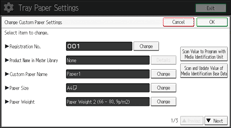
 Press [Scan Value to Program with Media Identification Unit].
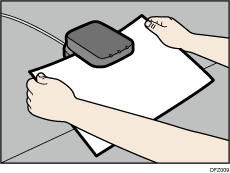
 Insert paper into the Media Identification Unit, and then remove it.
Hold the edges of the paper with both hands when inserting the paper.
Keep the paper flat as you pull it out.
 Change the settings.
If you change the [Paper Weight], [Paper Type], [Coated Paper Type], [Paper Color], [Prepunched or Not], or [Textured or Not] and press [OK], a message appears to notify you that the [Advanced Settings] will be initialized. To apply the changes for those settings, select [Change]. To cancel the changes, select [Do not Change].
 Press [OK].
 Press [Overwrite].
Press [Save] to register the paper settings as another custom paper.
 Press [Yes].
 Press [Exit].
 Press the [Paper Setting] key.

For details about custom paper settings, see Custom Paper Settings.
You cannot modify a custom paper that is assigned to a paper tray. To modify it, cancel the assignment.
For details about [Advanced Settings], contact your machine administrator.
Sheets of custom paper are assigned with a sequential number from 0001. You can change the number on the [Change Custom Paper Settings] screen.
Press [Scan and Update Value of Media Identification Base Data] to register the information scanned by the Media Identification Unit. Also press this button to increase identification accuracy to search for custom paper or register information from custom paper that was registered without using the master library.


