


 Previous
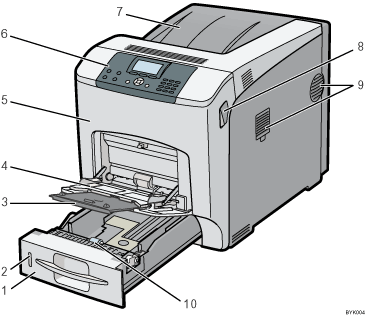
Tray 1
Up to 550 sheets of plain paper can be loaded.
For details about the sizes and types of paper that can be used, see Paper Size Specifications and Paper Type Specifications.
Remaining paper indicator
Indicates the approximate amount of paper remaining in the tray.
Extender for the bypass tray
Pull this extender out when loading A5
 or larger size paper in the bypass tray.
Bypass tray
Up to 100 sheets of plain paper can be loaded.
For details about the sizes and types of paper that can be used, see Paper Size Specifications and Paper Type Specifications.
Front cover
Open the front cover to replace the fusing unit or transfer roller, or to remove jammed paper.
Control panel
For details, see Guide to the Names and Functions of the Control Panel.
Standard Tray / Top Cover
Under normal operation, output is stacked on the top cover, which works as the standard output tray. Open this cover to replace the toner.
Front Cover Open Levers
Pull these levers toward the front side of the printer to open the front cover.
Ventilation holes
The right side of the printer features two ventilation holes. To prevent overheating, heat from internal components is released through these vents. Malfunctions and failure can result if these ventilation holes are blocked or obstructed.
The dustproof filter needs to be replaced regularly for proper maintenance.
Replace the dustproof filter when the following message appears:
“Replcmnt Rqrd:Fusing Unit”
Replace the dustproof filter and the fusing unit together.
Paper Feed Roller
This ensures only one sheet of paper is fed in at a time. If multi-sheet feeds occur, clean the paper feed roller carefully.


