


 Previous
If you load a paper size that is not selected automatically, specify the paper size using the control panel.
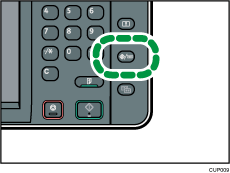
 Press the [User Tools/Counter] key.
 Press [Tray Paper Settings].
 Select a tray from [Tray Paper Size: Tray 2], [Tray Paper Size: Tray 3], [Tray Paper Size: LCT], [Tray Paper Size: Interposer Upper Tray], or [Tray Paper Size: Interposer Lower Tray] for which you want to change the paper size.
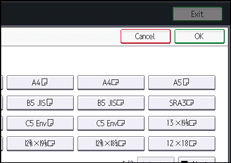
 Select the loaded paper size, and then press [OK].
 Press the [User Tools/Counter] key.

For details about paper sizes selected automatically, see Recommended Paper Sizes and Types.
If you want to print on paper that is selected automatically after printing on a paper size that is not selected automatically, you must return the setting to [Auto Detect]. Reload the paper, and select [Auto Detect] in step 4.


