


 Previous
To delete a page, select  , the Page select / Delete icon. If a page is deleted, the previous page appears. If the top page is deleted, the next page appears. If all pages are deleted, a new screen appears.
Delete a page as follows:
 Touch
Touch  , the Delete icon on the projection screen with the pen nib.
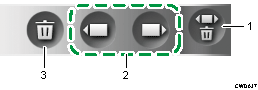
Page select / Delete icon
Page select icon
Delete icon
 Touch
Touch  /
/  , the Page select icon to select the page you want to delete.
 Touch , the Delete icon.
 Touch [OK].
To cancel this operation, touch [Cancel].

If there is only one page to be deleted,
, the Page select / Delete icon does not work.You cannot select the
/ , the Page select icon on the top page.You cannot select the
/ , the Page select icon on the last page.


