


 Previous
To write and draw on the screen, select  , the Pen icon. The line color and thickness of the line for writing are displayed on the icon. Once the icon is selected, the line specified by the icon will be drawn on the screen as it is drawn by the pen on the screen. This pen operation is called a "stroke".
Write and draw on the screen as follows:
 On the screen, touch , the Pen icon with the pen nib.
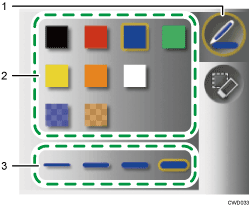
Pen icon
Pen colors
Thickness of the line
 Specify the line color and thickness you want to use.
 Move the pen on the screen.
While the pen nib is on the screen, you can draw lines.

3,000 strokes are possible per page.
90,000 strokes are possible on all pages if RICOH PJ Interactive Software is used.


