


 Previous
This section explains how to view and use the RICOH PJ Interactive Software whiteboard screen.
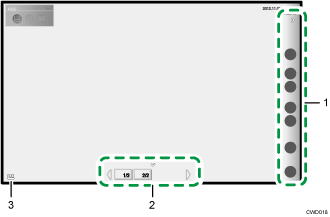
Tool area
By default, tool icons are usually located along the right side of the screen.
To move the tool area to the left side, touch the icon to move the tool area.
Page area
The thumbnails of the recorded pages appear in this area. Use this area to switch between pages.
[Move Tool Area] icon
Moves the tool area. By default, this icon is located on the bottom-left corner of the screen.
When the tool area is moved to the left, the icon moves to the bottom-right corner of the screen.


