


 Previous
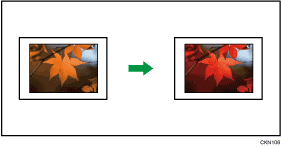
Copies by changing a certain color in the original to another color. Up to four colors can be converted at the same time.
 Press [Full Colour].
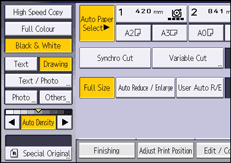
 Press [Edit / Colour].
 Press [Colour].
 Press [Convert Colour].
 Select any one item from [Conversion 1] to [Conversion 4].
 Select the color to be converted.
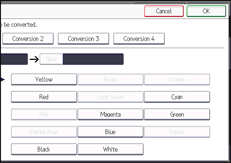
 Select the new color.
You can adjust the density of the color in four steps.
To select user color, press [User Colour], and then select the color.
To change two colors or more, repeat steps 5 to 7.
 Press [OK] three times.
 Place the original, and start scanning.

The full color counter values will increase.
The width of the color to be converted can be adjusted in five levels. When the width of the color is set to [Wider] under [Colour Sensitivity] in User Tools and red has been specified, colors close to orange and purple will be converted. You can change the setting. For details, see Adjust Colour Image
 .
.User colors should be registered in advance. For details about how to register a user color, see Registering User Colors
.


