




Network Settings for Ethernet and Wireless LAN
Make the following network settings according to the network interface you are using.
The following table shows the settings that can be specified and their default factory values. These items appear in the [Network Setup] menu.
Setting Name |
Value |
|---|---|
IPv4 DNS |
ServerAddress 1 and 2 0.0.0.0 |
IPv4 DDNS |
On |
DHCP |
On |
IPv4 Address |
11.22.33.44 |
IPv4 Subnet M. |
0.0.0.0 |
IPv4 Gatewy.Ad. |
0.0.0.0 |
IPv6 DDNS |
On |
IPv6 DNS |
ServerAddress 1 and 2 :: |
DHCPv6 |
Off |
IPv6 Statlss Ad |
On |
IPv6 Address |
Manual Confg Ad MnCfgAd PrfxLen |
IPv6 Gatewy.Ad. |
0:0:0:0:0:0:0:0 |
Active Protocol |
IPv4: Active IPv6: Active HTTP (IPv4): Active HTTP (IPv6): Active Web: Active |
IPsec |
Off |
Ethernet Speed |
Auto Select |
Prmt SNMPv3 Com |
Cleartext |
Pmt SSL/TLS Com |
IPv4: Active IPv6: Active |
The following example explains how to allocate an IPv4 address.
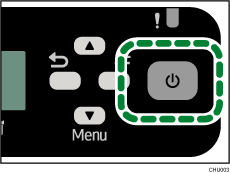
 Press the [Power] key.
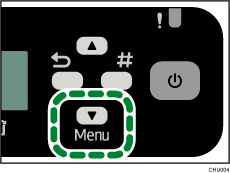
 Press the [
 /Menu] key.
 Press the [
 ] or [/Menu] key to display the [Host Interface] menu, and then press the [#Enter] key.
| Menu: Host Interface |
 Press the [] or [/Menu] key to display [Network Setup], and then press the [#Enter] key.
| Host Interface: Network Setup |
 Press the [] or [/Menu] key to select [IP Address], and then press [#Enter] key.
| Network Setup IP Address |
The current IP address appears on the display.
 Press the [] or [/Menu] key to enter the left most entry field of the IP address, and then press the [#Enter] key.
IP Address:  1. 22. 33. 44 1. 22. 33. 44 |
To get an IP address for the machine, contact your network administrator.
The value moves by 10 if the [] or [/Menu] key is kept pressed.
 Press the [#Enter] key.
The entered value is confirmed, and the cursor moves to the next field.
| IP Address: 192. 2. 33. 44 |
To return to the previous field, press the [Escape] key.
 Specify values in all fields, and then press the [#Enter] key.
 Specify "Subnet Mask" and "Gateway Address" in the same way.
 After you have made all the settings, press the [Escape] key.
The specified settings are set and the initial screen reappears.
You can print the configuration page to confirm the specified settings.

For details about how to print a configuration page, see Printing a Configuration Page
 .
.

