


 Previous
This section describes how to program Personal Boxes.
You can program the following items:
Box Name (required)
Up to 20 characters long.
SUB Code (required)
Up to 20 characters long and can be composed of digits [0]–[9], [
 ], [
], [ ], and spaces (the first character cannot be a space).
Password (optional)
Up to 20 characters long and can be composed of digits [0]–[9], [
], [], and spaces (the first character cannot be a space).When programming a password, a mark is displayed before the box name.
Receiver (optional)
You can program one delivery destination for each Personal Box. Specify a delivery destination programmed in the Address Book. You can set the fax destination, IP-Fax destination, Internet Fax destination, e-mail destination, or folder destination, as a transmission destination.
You can edit boxes in the same way you program them. However, boxes that are being used cannot be edited.
For details about this function, see Personal Boxes .
.
 Press [Facsimile Features].
 Press [General Settings].
 Press [Box Setting].
 Check that [Program / Change] is selected.
 Select a box to program.
When programming a new box, press [Not Programmed].
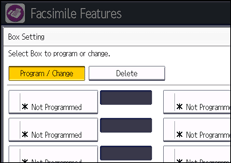
To change a box already programmed, press it and proceed to step 8. If a password is programmed, enter the password using the number keys, and then press [OK].
 Press [Personal Box].
 Enter a box name, and then press [OK].
 Enter a SUB Code using the number keys.
To change the SUB Code, press [Clear], and then try again. To change a box name, press [Box Name], and then repeat from step 7.
 Specify a password as necessary.
Press [Password], enter a password using the number keys, and then press [OK]. Re-enter the password for confirmation, and then press [OK].
 Specify a receiver as necessary.
Press [Receiver], select a destination from the destination list, and then press [OK].
Press the transmission type tab to switch the transmission type between fax/IP-Fax, Internet Fax, e-mail, or folder.
 When you specify an Internet Fax or e-mail destination as a receiver, configure the settings in "Security" as necessary.
To encrypt e-mails, press [Encryption].
To attach a signature to an e-mail, press [Signature].
After configuring the settings, press [OK].
 Press [OK].
 Press [Exit] twice.

For details about the "Security" setting, see Encryption and Signature for Internet Fax/E-mail
.


