




 Manuals
 Contents
 Previous
 Next
Next


| | | |
| |||
| |||
| | | |
| ManualsContentsPreviousNext | | |

|

|
|

Confirm that the setting of the paper size dial matches the paper size and feed direction of the paper in the tray, otherwise the printer might be damaged, or printing problems might occur.
If you want to use the paper size and feed direction that are not indicated on the paper size dial, set the dial to " ". In this case, you should set the paper size using the control panel.
Make sure paper is not stacked higher than the upper limit mark inside the paper feed tray. Excessive stacking can cause paper jams.
Do not mix different types of paper in the same paper tray.
Specify the paper size using the control panel or paper size dial, and paper type using the control panel, according to the loaded paper. When printing a document, specify the same paper size and type in the printer driver as the settings specified on the printer.
For details about the supported paper sizes and types, see Supported Paper for Each Tray.
Do not move the side paper guides and end paper guide forcefully. Doing so can damage the tray.
Curled paper may jam, straighten curled paper before loading.
When loading paper, take care not to touch the surface of the paper.
Lift the paper tray slightly, and then pull it out until it stops. Adjust the paper size dial to match the size and feed direction of paper in the paper tray.
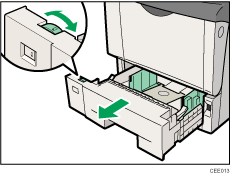
Lift the front side of the tray, and then pull it out of the printer.
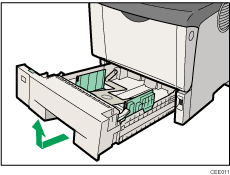
Place the tray on a flat surface.
If you load paper larger than A4 , you should extend the tray as follows:
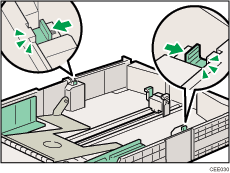
Slide the catches inwards to unlock the tray.
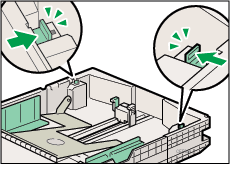
Slide the tray until it stops.
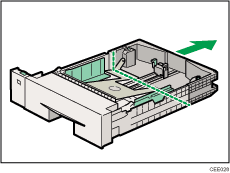
Return the catches to their original positions.
Pinch the clip on the side paper guide and slide it to match the standard size.
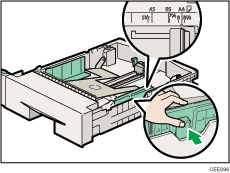
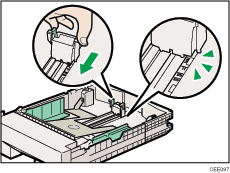
Pinch the end guide and slide it inward to match the standard size.
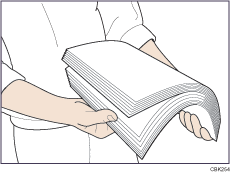
Fan the paper before loading paper in the tray.
Load the new paper stack print side down.
Make sure paper is not stacked higher than the upper limit (upper line) marked inside the tray.
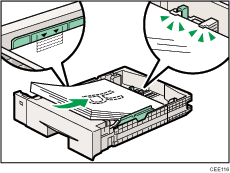
Slide the guides inward, until they are flush against the paper's sides.
Adjust the paper guides to close any gaps.
Do not move paper loaded in the tray more than a few millimeters.
Moving the loaded paper excessively can cause damage to paper edges on the openings of the tray's lifting plate, resulting in sheets being folded or becoming jammed.
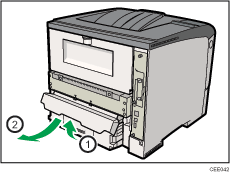
If you extended the tray in Step 3, pull the bottom of the paper tray cover ( ) up slowly, and then remove the paper tray cover (
 ),as shown in the illustration.
Hold the tray with both hands, slide it along the rails of the printer body, and then push it straight in.
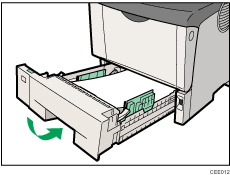
To avoid paper jams, make sure the tray is securely inserted.

You cannot load paper smaller than A4, if the tray is extended. In this case, return the tray to its standard length.
 |
 | Copyright (C) 2010 |
