




Changing to a Size That Is Not Automatically Detected
This section describes how to set the paper size that is not automatically detected.
When paper is loaded which cannot be detected automatically, the user must set the paper size on the control panel.
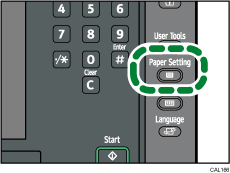
 Press the [Paper Setting] key.
 Select the tray number on the screen.
 Press [Paper Size] tab.
 Select the loaded paper size and feed direction, and then press [OK].
 Press the [Paper Setting] key.

For details about paper sizes selected automatically, see "Recommended Paper Sizes and Types", About This Machine.

