




Changing the Paper Size in Tray 2
This section explains how to change the paper size in Tray 2.

If a paper tray is pushed vigorously when putting it back into place, the position of the tray's side fences may slip out of place.
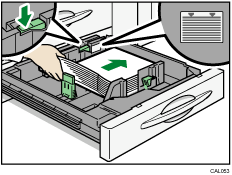
Do not stack paper over the limit mark.
Check that the top of the paper is aligned with the right side.
Slide the side fences until they are aligned with the paper size, and then re-lock the side fences. Make sure there are no gaps between the paper and side fences.
 Check that the paper tray is not in use, and then pull the tray carefully out until it stops.
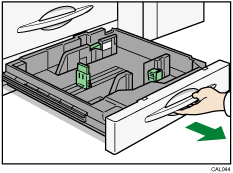
 Remove paper if loaded.
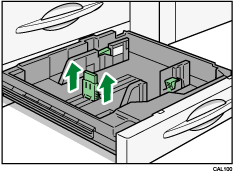
 Release the lock on the side fence.
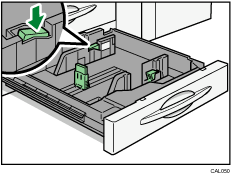
 While pressing down the release lever, slide the side fences until they are aligned with the paper size you want to load.
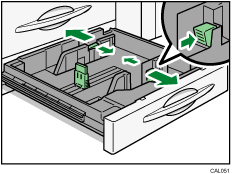
 Slide the end fence until it is aligned with the paper size you want to load.
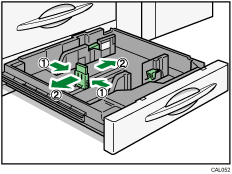
 When adjusting the paper tray for custom size paper, pull up on the end fence to secure it at the required position.
 Square the paper, and then load it print side down.
Re-lock the side fences again.
 Carefully slide the paper tray fully in.
 Check the size on the display.

