




Control Panel
This section introduces the names and functions of the control panel's components.

Do not turn off the main power switch if the operation switch indicator is lit or flashing. Doing so may damage the hard disk.
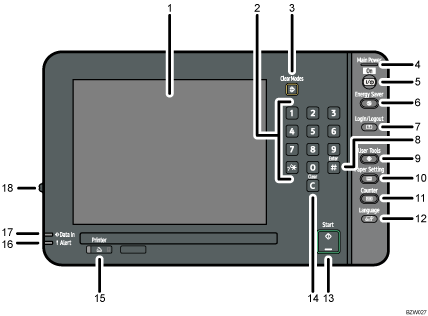
Display panel
Shows function menus, error messages, and the machine's operation status.
Number keys
Use to enter the numbers.
[Clear Modes] key
Press to clear the current settings.
Main power indicator
The main power indicator goes on when you turn on the main power switch.
Operation switch
Press to turn the power on (the operation switch indicator will light up). To turn the power off, press this switch again (the operation switch indicator goes off).
See “Turning On/Off the Power”.
[Energy Saver] key
Press to switch to and from Energy Saver mode.
See “Saving Energy”.
[Login/Logout] key
Press to log in or out of the system.
[
 ] key (Enter key)
Press to confirm values entered or items specified.
[User Tools] key
Press to change the default settings and conditions to meet your requirements.
See “System Settings”, General Settings Guide.
[Paper Setting] key
Specify settings for the paper tray.
[Counter] key
Press to check or print the counter value.
See “Counter”, General Settings Guide.
[Language] key
Press to change the language of the display.
[Start] key
Press to start printing.
[Clear] key
Press to delete an entered number.
[Printer] key
Press to display the operation screen of the printer function.
When you select this function, the indicator to the left of the key will light up.
If an error occurs, the indicator to the right side of the function key lights up. Press the function key to change the display, and then follow the instructions that appear.
Alert indicator
Lights continuously if an error has occurred.
Data In indicator
Lights up when the machine is receiving data.
Screen contrast slider
Adjusts display panel brightness.


