












 Manuals
 Contents
 Previous
 Next
Next


| | | |
| |||
| |||
| | | |
| ManualsContentsPreviousNext | | |
This section describes Auto Color Calibration.
If a certain color is strong or the color of the copy differs from the original, adjust the yellow, magenta, cyan, and black balance.
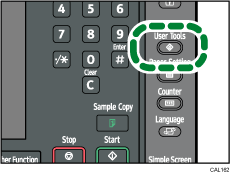
Press the [User Tools] key.
Press [Maintenance].
Press [Auto Color Calibration].
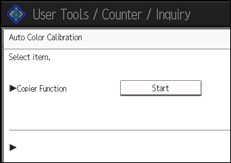
Press [Start].
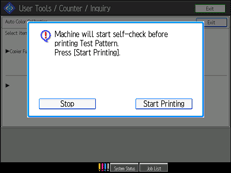
Press [Start Printing].
A test pattern is printed.
Place the test pattern on the exposure glass, and then press [Start Scanning].
The image will be corrected after "Scanning...Please wait." disappears.

The test pattern will not be read if it is set in the ADF.
The test pattern will be printed on an A4 , 81/2"
  11" size page. If A4 or 81/2" 11" is not available, B4 JIS
 , A3, or 11" 17" will be used. Make sure to check the paper set in the paper tray.
Set the test pattern in the following way:
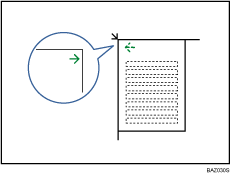
Make sure to set the test pattern on the exposure glass, and then two or three white sheets, same size as the test pattern, above the test pattern.
 |
 | Copyright (C) 2010 |
