



Control Panel
This section introduces the names and functions of the components on the control panel.

Do not turn off the main power switch while the operation switch indicator is lit or blinking. Doing so may damage the hard disk.
This illustration shows the control panel of the machine with options fully installed.
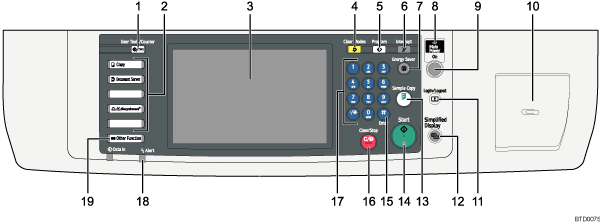
[User Tools/Counter] key
User Tools
Press to change the default and conditions to meet your requirements. See “Accessing User Tools”, General Settings Guide.
Counter
Press to check or print the counter value. See “Counter”, General Settings Guide.
Inquiry
Press to find out where to order expendable supplies and where to call when a malfunction occurs. You can also print these details. See “Inquiry”, General Settings Guide.
Function keys
Press to display the operation screen of the desired function:
The indicator of the selected function goes on. See “Changing Modes”.
Display panel
Displays keys for each function, operation status, or messages. See “Display Panel”.
[Clear Modes] key
Press to clear the current settings.
[Program] key (copier, and Document Server mode)
Press to register frequently used settings, or to recall registered settings (except Document Server mode). See “Registering Frequently Used Functions”, Copy/Document Server Reference.
Press to program defaults for the initial display when modes are cleared or reset, or immediately after the operation switch is turned on. See “Registering the Initial Display's Default Functions”, Copy/Document Server Reference.
[Interrupt] key
Press to make interrupt copies. See “Interrupt Copy”, Copy/Document Server Reference.
[Energy Saver] key
Press to switch to and from Energy Saver mode. See “Saving Energy”.
Main power indicator
The main power indicator goes on when you turn on the main power switch.
Operation switch
Press to turn the power on (the operation switch indicator goes on). To turn the power off, press again (the operation switch indicator goes off). See “Turning On the Power”.
Paper clip tray
Holds paper clips or staples removed from documents.
[Login/Logout] key
Press this to log in or log out.
[Simplified Display] key
Press this to switch to the Simplified Display.
[Sample Copy] key
Press to make a single set of copies or prints to check print quality before making multiple sets. See “Sample Copy”, Copy/ Document Server Reference.
[Start] key
Press to start copying.
[
 ] key (Enter key)
Press to confirm values entered or items specified.
[Clear/Stop] key
Clear
Press to delete a number entered.
Stop
Press to stop a job in progress, such as copying.
Number keys
Use to enter the numbers for copies and data for the selected function.
Alert indicator
Lights continuously if an error has occurred.
[Other Function] key
Calls up registered functions.


