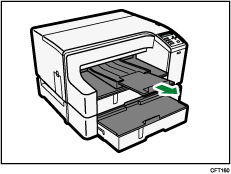



Loading Paper Larger than A4/Letter (Tray 2)
Follow the procedure below to use the paper tray extension for paper larger than A4/Letter size, such as Legal size paper.
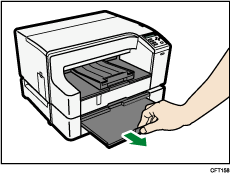
 Hold the Tray 2 grip, pull the tray halfway out, lift it slightly (
 ), and then pull it out further (
 ).
).
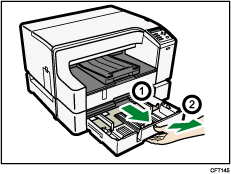
Pull tray 2 completely out. Take care not to drop it.
After pulling out the tray 2, check that no paper remains in the printer. If there are any remaining paper sheets, remove them.
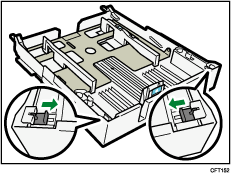
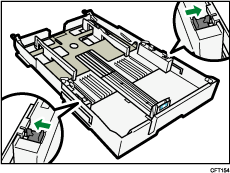
 Slide both tabs to the inside of the tray 2, and then release the lock.
 Pull out the paper tray extension.
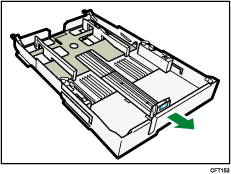
 Slide both tabs to the original positions, and then lock the tray.
 Pinch the catch of the paper guide on the right side, slide the paper guides to match the size of paper you want to load, and then push the end paper guide out until there is space between them.
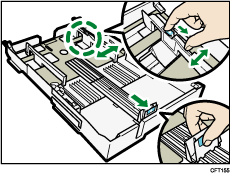
Do not use the paper tray extension for A4 (Letter) size paper or smaller paper.
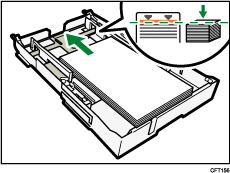
 Load paper with the print side face down but not over the limit mark.
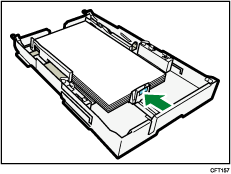
 Squeeze the front end paper guide, and then slide it to meet the edge of the paper.
 Pull out the paper tray cover extension.
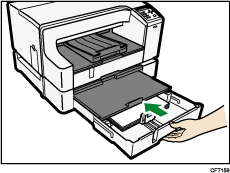
 Push tray 2 gently in until it stops.
 Pull out the output ramp extension.