




Loading Paper into Tray 1 (Tandem Tray)
This section describes how to load paper into Tray 1 (Tandem tray).

When paper loaded in the right side of Tray 1 runs out, paper on the left is automatically shifted to the right. Do not pull out Tray 1 while the tray is moving paper; wait until sounds stop coming from the tray.
For the right stack, align the right edge of the paper with the right edge of the tray. For the left stack, align the left edge of the paper to the left edge of the tray.
Tray 1 uses only 81/2 × 11
 paper. If you want to load A4, contact your service representative.
Do not stack paper over the limit mark.
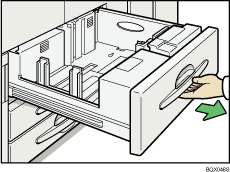
 Carefully pull out the paper tray until it stops.
 Square the paper and load it print side down.
Whole tray pulled out
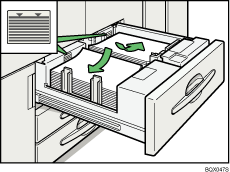
Left half of the tray pulled out
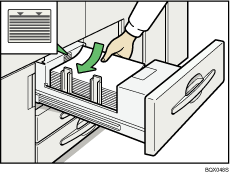
 Carefully push the paper tray fully in.

You can load paper even while printing from Tray 1. You can pull out the left half of the tray while printing is in.
Load the same size and orientation paper in the other half of the tray.
Each tray can hold up to 1,100 sheets of paper.

