




Deleting Hold Print files
Deleting a selected Hold Print file only
 Press the [Menu] key.
The [Menu] screen appears.
 Press the [
 ] or [
 ] key to display [Hold Print], and then press the [
 Enter] key.
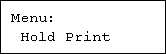
 Press the [] or [] key to display [Delete One File], and then press the [ Enter] key.
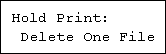
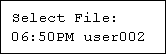
The file name and the time when the job was stored appear.
 Press the [] or [] key to display the file you want to delete, and then press the [ Enter] key.
To cancel deleting a Hold Print file, press the [Escape] key.
 Check the file you want to delete is displayed, and then press the [ Enter] key.
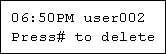
The “Deleted” message appears.
 Press the [Menu] key.
The initial screen appears.
Deleting all Hold Print files
Press the [Menu] key.
The [Menu] screen appears.
Press the [] or [] key to display [Hold Print], and then press the [ Enter] key.
Press the [] or [] key to display [Del. All Files], and then press the [ Enter] key.
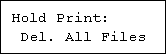
The user ID when the job was stored appear.
Press the [] or [] key to display the user ID for the file you want to delete, and then press the [ Enter] key.
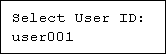
To cancel deleting a Hold Print file, press the [Escape] key.
The number of documents selected for deletion is displayed. Check the number, and if it is correct, press the [ Enter] key.
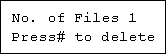
The “Deleted” message appears.
Press the [Menu] key.
The initial screen appears.

