




Canceling a Print Job
Follow this procedure for canceling the print job if the message prompting form feed appears.
 Press the [Job Reset] key.
The “Job Reset?” screen appears.
 Select the current job or all jobs (including the current job) using the [
 ] or [
 ] key.

It is also possible to annul the cancellation. Printing resumes if you select [Resume Print], and then press the [ Enter] key
 Press the [ Enter] key.
The confirmation message appears.
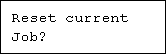
Printing resumes if you press the [Escape] key after the message appears.
 Press the [ Enter] key.
The job is canceled. When the cancellation procedure is complete, a message appears.

If the printer is shared by multiple computers, be careful not to accidentally cancel someone else's print job.
Under Windows, If the printer is connected to the computer using a parallel cable, sent print jobs may be canceled if the [Job Reset] key is pressed while “Waiting for print data...” is displayed on the control panel. After the interval set in [I/O Timeout] in [Host Interface] has passed, the next print job can be sent. A print job sent from a different client computer will not be canceled in this case.
You cannot stop printing data that has already been processed. For this reason, printing may continue for a few pages after you press the [Job Reset] key.
A print job containing a large volume of data may take considerable time to stop.
To stop data printing, see "Canceling a Print Job".


