




Printing from a Selected Tray
If the printer does not have a tray for the selected paper size or paper type, or if the selected paper loaded in the printer has run out, a caution message appears. If this message appears, do the following procedure.
 Press the [Form Feed] key, and then select the paper tray on the screen.
 Select the tray for form feed using the [
 ] or [
 ] key from those that appear on the display panel, and then press the [
 Enter] key.
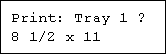
The printer prints using the selected tray.

If a tray with a smaller paper size is selected, the print job may be cut short, or other problems may occur.

