




Specifying an IP Address (No DHCP)
Follow this procedure to assign a specific IP address to the printer. This is only necessary when you will use the printer on a network without DHCP, or want to prevent the printer's IP address from changing.
Before beginning, make sure that you know the IP address, subnet mask and gateway address that the printer will use.
 Press the [Menu] key.
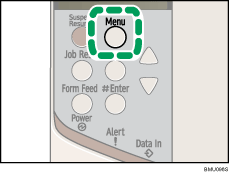
The [Menu] screen appears.
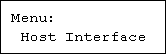
 Press the [
 ] or [
 ] key to display [Host Interface], and then press the [
 Enter] key.
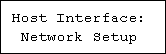
 Press the [] or [] key to display [Network Setup], and then press the [ Enter] key.
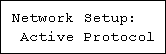
 Press the [] or [] key to display [Active Protocol], and then press the [ Enter] key.
 Press the [] or [] key to set the network protocol, and then press the [ Enter] key.
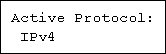
 Press the [] or [] key to display [Active] or [Not Active], and then press the [ Enter] key.
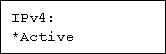
Set other protocols you need to set in the same way.
Select [Not Active] for unused protocols.
Enable IPv4 to use the Pure IPv4 environment of NetWare 5/5.1, NetWare 6/6.5.
 Press the [Escape] key until the screen returns to the [Network Setup] menu.
 If you use IPv4, assign the IPv4 address to the printer. Press the [] or [] key to display [IPv4 Settings], and then press the [ Enter] key.
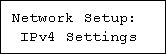
To get the IP address for the printer, contact your network administrator.
 To specify the IP Address, Press the [] or [] key to display [IPv4 Address], and then press the [ Enter] key.
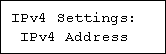
If you use IPv4, also assign subnet mask and gateway address.
 Press the [] or [] key to enter the address, and then press the [ Enter] key.
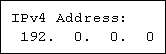
Press the [] or [] key to enter the left most entry field of the address. After entering the left field, press the [ Enter] key, and then you can enter the next field. After completing to enter in the all fields, press the [ Enter] key.
Do not set "11.22.33.44" as the IP address.
 If you are using the printer on an IPv4 network, specify the subnet mask and gateway address in the same way as you assigned the IPv4 address.
Press the [] or [] key to select [Subnet Mask] or [Gateway Address], and then press the [ Enter] key.
 Press the [Menu] key.
The initial screen appears.
 Print a configuration page to confirm the settings made.

"Printing the Test Page", Quick Installation Guide.

