




Setting Translucent Paper or Film Using the Control Panel
Follow the procedure below to set the machine using the control panel when loading thick paper, thin paper, or OHP transparencies onto the bypass tray.

The following procedures are not required if you select [Driver / Command] from [Bypass Tray Setting Priority] in [System] of [Printer Features] (see "Printer Features", General Settings Guide). In that case, set the paper size using the printer driver.
If you select [Machine Settings] from [Bypass Tray Setting Priority] in [System] of [Printer Features] (see "Printer Features", General Settings Guide), the settings made using the control panel have priority over the printer driver settings.
If the printer driver is not used, select [Machine Settings] from [Bypass Tray Setting Priority] in [System] of [Printer Features] (see "Printer Features", General Settings Guide). Set the paper size using the control panel.
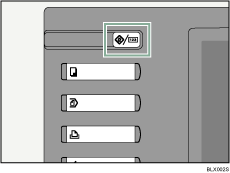
 Press the [User Tools/Counter] key on the control panel.
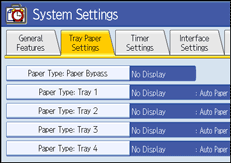
 Press [System Settings].
 Press the [Tray Paper Settings] tab.
 Press [
 Next] to scroll through the list.
 Press [Paper Type: Paper Bypass].
 Press [Translucent Paper] or [Film] on the [Paper Type] area when loading translucent paper or film.
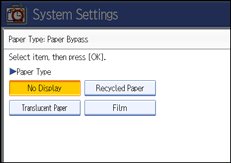
 Press [OK].
The paper type selected is displayed.
 Press the [User Tools/Counter] key.
The initial screen appears.

The settings made will remain valid until they are reset again. After printing on translucent paper or film, make sure to clear settings for the next user.
For details about setting printer drivers, see the printer driver Help.

