




Setting Paper on the Bypass Tray
This section gives instructions for setting paper on the bypass tray.
For details about paper size and paper type, see "Paper Size and Paper Type", About This Machine.

Paper sizes that can be loaded onto the bypass tray are 182 - 2000 mm (7.17 - 78.74 in.) vertical, and 210 - 914.4 mm (8.27 - 36 in.) horizontal.
Insert the paper in the bypass tray lengthwise or sideways to fit it onto the feeding orientation.
The following functions are disabled when printing from the bypass tray:
Auto Tray Select
Auto Tray Switching
Folding(when the optional folding finisher installed)
 Set the paper size using the printer driver or control panel.
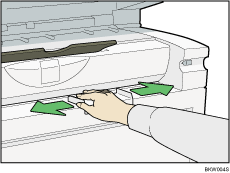
 Adjust the bypass tray's paper guides to the size of the paper.
If the paper size of the paper guide and the paper do not match, skewing and misfeeds might occur.
 Send the print job to the machine.
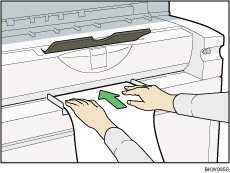
 Gently push the paper face up into the bypass tray until the beeper sounds.
Place the paper centrally, so that the space on either side of its edges is even.
Then push it carefully in, so that it makes light contact with the feed rollers.
Support the paper with your hands until it feeds in.
The paper feeds into the machine automatically and printing starts.
 Check that the paper is properly fed.

When the Panel Key Sound is turned off, it will not sound if you insert paper into the bypass tray. For details about Panel Key Sound, see "System Settings", General Settings Guide.
When loading translucent paper or film, set paper size and paper type.
If you are printing multiple pages, feed the next sheet.
Do not print on both sides of the paper.
Do not use paper already copied or printed on.
For details about paper type and orientation that can be loaded in the bypass tray, see "Copy Paper", About This Machine.
To set a rolled paper, pull out the lower output auxiliary guide to the front, and then place the rolled paper on it.
For details about setting printer drivers, see the printer driver Help.


