












 Manuals
 Contents
 Previous
 Next
Next


| | | |
| |||
| |||
| | | |
| ManualsContentsPreviousNext | | |
Following describes the detailed specifications of the respective functions.
Job Preset
When the paper size specified in Job Preset is as the same as that of the copy job in progress, the number of sheets that can be set is as follows:
A0 (E): 100 sheets
A1 (D): 100 sheets
A2 (C): 200 sheets
A3 (B): 400 sheets
A4 (A): 400 sheets
The maximum number of jobs that can be preset is eight.
You might not be able to specify eight preset jobs if your originals are large.
Selecting Copy Paper
If you change the paper type, copying may take longer to start.
When Auto Paper Select is selected, copying may take slightly longer since the machine selects the copy paper after scanning the original.
Preset Reduce/Enlarge
The reproduction ratios you can specify are 25.0-400.0%.
You can select one of eight preset ratios (four enlargement ratios, four reduction ratios).
Following shows the relation between the original size and paper size at respective scaling factors.
Metric version
400.0% (Area ratio 16 times): A4 A0
A0
282.8% (Area ratio 8 times): A3A0, A4A1, B4 JISB1 JIS
200.0% (Area ratio 4 times): A2A0, A3A1, A4A2, B3 JISB1 JIS, B4 JISB2 JIS
141.4% (Area ratio 2 times): A1A0, A2A1, A3A2, A4A3, B2 JISB1 JIS, B3 JISB2 JIS, B4 JISB3 JIS
70.7% (Area ratio 1/2 times): A0A1, A1A2, A2A3, A3A4, B1 JISB2 JIS, B2 JISB3 JIS, B3 JISB4 JIS
50.0% (Area ratio 1/4 times): A0A2, A1A3, A2A4, B1 JISB3 JIS, B2 JISB4 JIS
35.4%: A0A3, A1A4, B1 JISB4 JIS
25.0%: A0A4
Inch version (Engineering)
400.0% (Area ratio 16 times): A E
258.8%: A D, B E
200.0% (Area ratio 4 times): A C, B D, C E
129.4%: A B, B C, C D, D E
64.7%: B A, C B, D C, E D
50.0% (Area ratio 1/4 times): C A, D B, E C
32.4%: D A, E B
25.0%: E A
Inch version (Architecture)
400.0% (Area ratio 16 times): A E
266.7%: A D, B E
200.0% (Area ratio 4 times): A C, B D, C E
133.3%: A B, B C, C D, D E
66.7%: B A, C B, D C, E D
50.0% (Area ratio 1/4 times): C A, D B, E C
33.3%: D A, E B
25.0%: E A
You can select a ratio regardless of original or paper size, or paper roll cut method. With certain ratios, parts of the image might not be copied or margins will appear.
Zoom
The reproduction ratios you can specify are 25.0-400.0%.
You can select a ratio regardless of original or paper size, or paper roll cut method. With certain ratios, parts of the image might not be copied or margins will appear.
Size Magnification
The reproduction ratios you can specify are 25.0-400.0%.
If the calculated ratio is over the maximum or under the minimum ratio, it is automatically adjusted to within available range. However, with some ratios, parts of the image might not be copied or margins will appear on copies.
Directional Magnification (%)
The reproduction ratios you can specify are 25.0-400.0%.
You can enter a ratio regardless of original or paper size, or paper roll cut method. With certain ratios, parts of the image might not copy or margins will appear.
You cannot use Directional Magnification (%) if Auto Paper Select is selected.
Directional Magnification (inch)
The reproduction ratios automatically selected by the machine are 25.0 - 400.0%.
If the calculated ratio is over the maximum or under the minimum ratio, it is automatically adjusted within the available range. With certain ratios, parts of the image might not copy or margins will appear.
You cannot use Directional Magnification (inch) if Auto Paper Select is selected.
Fine Magnification
Depending on the image patterns of the originals, moiré patterns may be noticeable, or the image quality may deteriorate.
Combine
The machine selects the reproduction ratio automatically. This reproduction ratio depends on copy paper sizes and the number of originals.
If the calculated ratio is under the minimum ratio, it is automatically adjusted to within available range. However, with some ratios, parts of the image might not be copied.
You cannot use custom size paper.
If the orientation of originals is different from that of the copy paper, the machine will automatically rotate the image by 90 degrees to make copies properly.
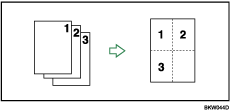
If the number of originals placed is less than the number specified for Combine, the last page segment is left blank as shown.
Erase Border
You can specify the width of the erased border margins from 2 to 99 mm (0.1" to 3.9") in increments of 1 mm (0.1").
Erase Inside
By combining "Erase Inside 1"-"Erase Inside 5", you can erase up to 5 areas at the same time.
Margin Adjustment
You can specify margins from 0 to 200 mm (0 to 7.9") in increments of 1 mm (0.1").
If you set the margin too long for the original, parts of the image might not be copied.
Background Numbering
A pattern-like image may appear in the area where an original's image overlaps the background number.
Preset Stamp
You can stamp onto paper sizes up to A0 (E).
You can change the default settings of the stamp with User Tools. Depending on settings, image density may change.
Depending on paper size, if you change the stamp size, parts of the stamp might not be printed.
When you set the stamp position to "Bottom Left", "Bottom Center", or "Bottom Right", and then use Rotate Sort or Rotate Copy, the stamp position may shift.
User Stamp
You can stamp onto paper sizes up to A0 (E).
Date Stamp
You can stamp onto paper sizes up to A0 (E).
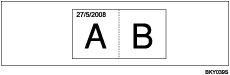
When using Combine mode, the date stamp is printed as follows:
Page Numbering
You can stamp onto paper sizes up to A0 (E).
When using Combine mode, page numbers are printed as follows:
[Per Original] is selected in User Tools:
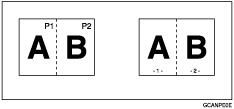
[Per Copy] is selected in User Tools:
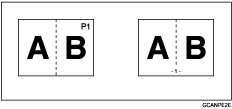
Image Repeat
Depending on the paper size, ratio, and orientation, parts of repeated images may not be copied.
You can use Image Repeat for paper sizes up to A0 (E).
When using Image Repeat with Adjust Print Position together, the repeated images will be shifted as a whole.
Double Copies
You can copy an image up to A1 (D) with Double Copies. You can use paper sizes up to A0 (E)  .
.
Format Overlay
When the sizes of the format (background original) and original to be overlaid on the format are different, the image is created at the size of the overlaid original.
You can use Format Overlay for paper sizes up to A0 (E).
When scanning a format (background original), the output image may be blurred. If this happens, copy the format, and then use it as the background original.
When using Format Overlay, image quality may deteriorate.
You cannot change the image density of a format (background original). To achieve a desired image density, scan an original with the image density changed beforehand.
Adjust Print Position
You can shift the image from 0 to 200 mm in 1 mm increments (0 to 7.9" in 0.1" increments).
When using Stamp and Adjust Print Position together, the stamp position does not move.
You can use Adjust Print Position for paper sizes up to A0 (E).
If you set the margin too long for the original, parts of the image might not be copied.
Sort, Rotate Sort
You can use Sort for copy sizes up to A0 (E).
You can use Rotate Sort for copy sizes up to A1 (D).
The number of originals that can be scanned for Sort and Rotate Sort is as follows:
A0 (E): 100 sheets
A1 (D): 150 sheets
A2 (C): 200 sheets
A3 (B): 400 sheets
You can use the following paper sizes with Rotate Sort:
Metric version
420 mm × 297 mm (A3)
594 mm × 420 mm (A2)
841 mm × 594 mm (A1)
515 mm × 364 mm (B3 JIS)
728 mm × 515 mm (B2 JIS)
Inch version (Engineering)
11" × 17" (B)
17" × 22" (C)
22" × 34" (D)
Inch version (Architecture)
12" × 18" (B)
18" × 24" (C)
24" × 36" (D)
 |
 | Copyright (C) 2008 |
