












 Manuals
 Contents
 Previous
 Next
Next


| | | |
| |||
| |||
| | | |
| ManualsContentsPreviousNext | | |

When loading custom size or special paper, specify the paper size using both the control panel and printer driver.
Paper sizes between 139.7 - 432 mm (5.50 - 17.00 in.) in length and 64 - 216 mm (2.52 - 8.50 in.) in width can be loaded in the bypass tray. However, the size range varies depending on a type of printer drivers. For details, see the printer driver Help.
Be sure to set a same size using both the control panel and the printer driver. If you set different size, printer error will occur.
You cannot print on custom size paper with an application that does not support the custom size setting.
Press the [Menu] key.
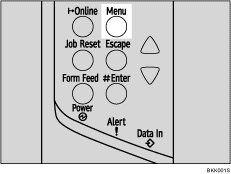
The [Menu] screen appears.
Press the [ ] or [
 ] key to display [Paper Input], and then press the [
 Enter] key.
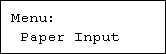
Press the [] or [] key to display [Bypass Size], and then press the [ Enter] key.
Press the [] or [] key to display [Custom Size], and then press the [ Enter] key.
Press the [] or [] key to enter the horizontal value, and then press the [ Enter] key.

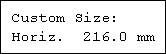

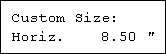
By pressing the [] or [] key, the value increases or decreases by 0.1 mm (0.01 inch).
By pressing and holding the [] or [] key, the value varies by 1 mm (0.1 inch).
You can set the horizontal value in the following range: 64 - 216 mm (2.52 - 8.50 inches).
Press the [] or [] key to enter the vertical value, and then press the [ Enter] key.
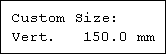
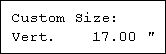
You can set the vertical value in the following range: 139.7 mm - 432 mm (5.50 -17.00 inches).
Press the [Online] key.
The initial screen appears.

The printer driver Help
 |
 | Copyright (C) 2008 |
