












 Manuals
 Contents
 Previous
 Next
Next


| | | |
| |||
| |||
| | | |
| ManualsContentsPreviousNext | | |

When you use this printer in DHCP environment, select [DHCP] following this procedure.
When [DHCP] is selected, you cannot make settings for the following items:
IPv4 Address
Subnet Mask
Gateway Address
Consult your network administrator for information about making network settings.
Press the [Menu] key.
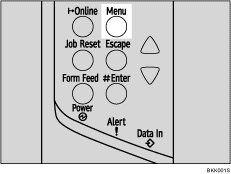
The [Menu] screen appears.
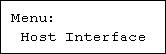
Press the [ ] or [
 ] key to display [Host Interface], and then press the [
 Enter] key.
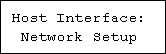
Press the [] or [] key to display [Network Setup], and then press the [ Enter] key.
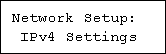
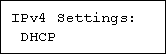
Press the [] or [] key to display [IPv4 Settings], and then press the [ Enter] key.
Press the [] or [] key to display [DHCP], and then press the [ Enter] key.
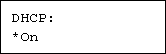
Press the [] or [] key to select [On] or [Off], and then press the [ Enter] key.
The address will be detected by the printer.
The default setting is [On].
Press the [Online] key.
The initial screen appears.
Print a configuration page to confirm the settings made.

"Printing the Test Page", Quick Installation Guide.
 |
 | Copyright (C) 2008 |
