




Network Connection
Follow the procedure below to connect the printer to the computer through the network. Prepare the hub and other network devices before connecting the 10BASE-T or 100BASE-TX cable to the printer's Ethernet port.Alternatively, the optional Gigabit Ethernet board, which supports 1000BASE-T, is available.

A network interface cable with a ferrite core must be used for RF interference suppression.
For users outside the United States of America: properly shielded and grounded cables and connectors must be used for connections to a host computer (and/or peripheral) in order to meet emission limits.
For users in the United States of America: properly shielded and grounded cables and connectors must be used for connections to a host computer (and/or peripheral) in order to meet FCC emission limits.

Use shielded Ethernet cable. Unshielded cables create electromagnetic interference that could cause malfunctions.
The Ethernet cable is not supplied with this printer. Select your cable according to the network environment.
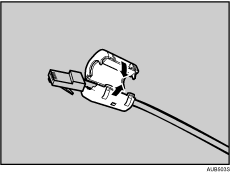
 Attach the supplied ferrite core at the printer end of the Ethernet cable.
 Connect the Ethernet cable to the Ethernet port.
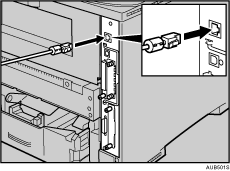
 Connect the other end of the cable to the printer's network, such as a hub.
Using the Gigabit Ethernet cable
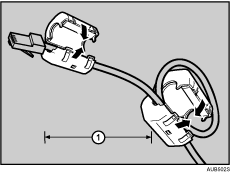
For using the Gigabit Ethernet cable, attach one ferrite core at the printer end of the Ethernet cable, and attach the other ferrite core about 10 cm (4 inches) ( ) from this core making a loop as shown.
Connect the Ethernet cable to the Gigabit Ethernet board.
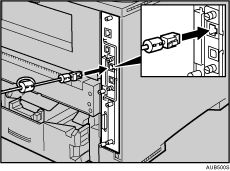
Connect the other end of the cable to the network, such as a hub.

The printer's Ethernet and USB ports are not available when the Gigabit Ethernet board is attached to the printer.

"Network Connection", Software Guide.


