




Attaching Hard Disk Drive Type 2650

Do not touch the inside of the controller board compartment. Doing so may cause a machine malfunction or a burn.

Before touching the hard disk drive, touch something metal to discharge any static electricity. Static electricity can damage the hard disk drive.
Do not subject the hard disk drive to physical shocks.
Before using the new hard disk drive, be sure to make the settings in the printer driver.
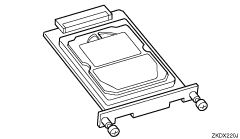
 Check the package contains the following:
Hard Disk Drive
 Turn off the power of the printer, and then unplug the power cable.
 Remove the two screws and the cover of the hard disk drive mounting bracket.
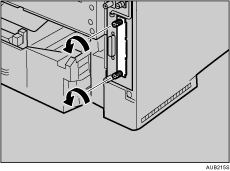
The removed screws and cover are not used when installing the hard disk drive.
 Slowly insert the hard disk drive while aligning it with the top and bottom rails in the printer until it stops.
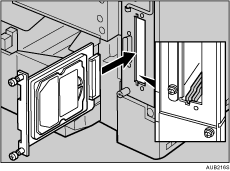
 Fasten the two screws to fix the hard disk drive.
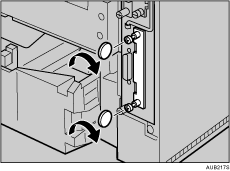

Use a coin or similar object if the screws do not turn easily.
After finishing installation, you can check whether the hard disk drive is properly installed: Print the configuration page from the [List/Test Print] menu. If it is installed properly, you will see "Hard Disk Drive" for "Device Connection" on the configuration page.
If the Hard disk drive is not installed properly, repeat the procedure from the start. If you cannot install it properly even after reinstallation, contact your sales or service representative.

"Printing the Test Page", Quick Installation Guide.

