


Faint Black / White Streaks in the Areas Using Only Black
When printing is performed in full color mode, black areas are generally faint. The sides of text strings may become faint, and streaks may appear.
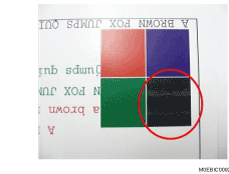
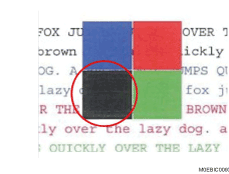
Cause:
The electricity charge for the black toner is lower than that for other colors, so the color may become faint when transferred to paper.
In addition, the paper transfer bias in full color mode is higher than in black-and-white mode, so the transferability of the low-charged black toner is prone to be low. Especially if text strings in the main scanning direction are near black solid-fill areas, the areas using only black along the text strings may become faint.

The same problem may occur after the position is switched to the K and S toner positions, whereby the special color (S) toner is in the black toner's position. The solutions are the same except that "(d) Print black using 4C (CMYK)." is not applicable.
Solution:
(a) Adjust the image transfer output.
 If the paper is not registered as custom paper, register the brand of the paper.
 In [Detailed settings] for the custom paper you are using, select 1212: [Image Transfer Output], Increase the value in the following corresponding settings by 1.
1212-01: Image Transfer Output: BW: Black
1212-02: Image Transfer Output: FC/FCS: Black
 Print the image. Has the problem been resolved?
Yes | Finished! |
No | Go to the next step. |
 Check if the density has improved.
Yes | Go back to Step 2 and increase the image transfer output by one more step. Print again to check the adjustment result.
|
No | Go to the next step. |
 Restore the value in 1212: [Image Transfer Output] to its previous setting.
 Select 1214: [Paper Transfer Output], decrease the value in the following corresponding settings by 1.
1214-01: Paper Transfer Output: BW: Side 1
1214-02: Paper Transfer Output: BW: Side 2
1214-05: Paper Transfer Output: FC/FCS: Side 1
1214-06: Paper Transfer Output: FC/FCS: Side 2
1214-09: Paper Transfer Output: FCS: Side 1
1214-10: Paper Transfer Output: FCS: Side 2
 Print the image. Has the problem been resolved?
Yes | Finished! |
No | Go to the next step. |
 Check if the density has improved.
Yes | Go back to Step 6 and decrease the paper transfer output by one more step. Print again to check the adjustment result.
|
No | No further improvement is likely. |
If improvement is observed, apply the most effective image and paper transfer output settings, and then go to Solutions (b) to (d).
(b) Execute Toner Refreshing.
Print 30 sheets of solid-fill images with 100% density for each color of CMYK.
(c) Increase the amount of black toner adhesion.
In Adjustment Settings for Operators, select 0201: [Adjust Image Density] in 01: [Execute Image Quality Adjustment] to execute the process control.
(d) Print black using 4C (CMYK).
Launch Fiery Command WorkStation.
Click the job properties for the print image.
Click the color tab.
Click color settings.
Set [Black text and graphics] to [Normal].
If set to [Normal], black images are printed using 4C (CMYK).
If set to [Pure Black On], black images are printed using a single color.