


Black Spots (Granular Toner Clotting)
Paper is stained with toner spots of 0.5–1 mm (0.02–0.04 inches) in diameter.
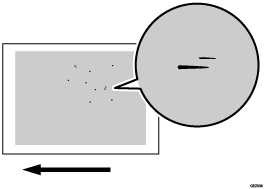
Cause:
This is caused by toner slipping through the cleaning web and adhering to the paper.
Occurrence conditions:
Duplex printing
Printing on uncoated (especially rough-textured) paper
Halftone printing
Printing after halftone printing
Printing after printing on many small-size sheets
Solution:
 If the paper is not registered as custom paper, register the brand of the paper.
 In [Detailed settings] for the custom paper you are using, select 1232: [Fusing Temperature], and then increase the value in the following corresponding settings by 5°C.
1232-01: Fusing Temperature: BW/FC/FCS: Heat Roller Temp
1232-06: Fusing Temperature: FCS: Heat Roller Temp: Clear/Special
1232-07: Fusing Temperature: FCS: Heat Roller Temp: White
1232-08: Fusing Temperature: FCS: Heat Roller Temp: Metallic
1232-26: Fusing Temperature: S: Heat Roller Temp: Clear/Special
1232-27: Fusing Temperature: S: Heat Roller Temp: White
1232-28: Fusing Temperature: S: Heat Roller Temp: Metallic
1232-46: Fusing Temperature: BW/FC/FCS: Fuser Setting HQ: Heat Roller Temp
1232-51: Fusing Temperature: FCS: Fuser Setting HQ: Heat Roller Temp: Clear/Special
1232-52: Fusing Temperature: FCS: Fuser Setting HQ: Heat Roller Temp: White
1232-53: Fusing Temperature: FCS: Fuser Setting HQ: Heat Roller Temp: Metallic
1232-71: Fusing Temperature: S: Fuser Setting HQ: Heat Roller Temp: Clear/Special
1232-72: Fusing Temperature: S: Fuser Setting HQ: Heat Roller Temp: White
1232-73: Fusing Temperature: S: Fuser Setting HQ: Heat Roller Temp: Metallic
 Print the image. Has the problem been resolved?
Print 20 sheets of the image, then another 10.
Yes | Finished! |
No | Go to the next step. |
 Increase the heating roller’s temperature by 5°C.
 Print the image. Has the problem been resolved?
Print 20 sheets of the image, then another 10.
Yes | Finished! |
No | Repeat Steps 4 and 5. If the problem persists even after increasing the heating roller's temperature to 185°C. |

If glossy streaks become noticeable or a paper jam occurs in the fusing unit due to increasing the fusing heat roller's temperature, reset the temperature setting to the default value, and then go to the next step.
 In [Detailed settings] for the custom paper you are using, select 1231: [Print Speed], and then set the value in the following corresponding settings to [Middle].
1231-01: Print Speed: BW/FC/FCS: BW/FC/FCS
1231-02: Print Speed: FCS: Clear/Special
1231-03: Print Speed: FCS: White
1231-04: Print Speed: FCS: Metallic
1231-06: Print Speed: S: Clear/Special
1231-07: Print Speed: S: White
1231-08: Print Speed: S: Metallic
1231-10: Print Speed: BW/FC/FCS: Fuser Setting HQ: BW/FC/FCS
1231-11: Print Speed: FCS: Fuser Setting HQ: Clear/Special
1231-12: Print Speed: FCS: Fuser Setting HQ: White
1231-13: Print Speed: FCS: Fuser Setting HQ: Metallic
1231-15: Print Speed: S: Fuser Setting HQ: Clear/Special
1231-16: Print Speed: S: Fuser Setting HQ: White
1231-17: Print Speed: S: Fuser Setting HQ: Metallic
 Print the image. Has the problem been resolved?
Print 20 sheets of the image, then another 10.
Yes | Finished! |
No | Go to the next step. |
 Print speed is [Middle], lower it to [Low].
 Print the image. Has the problem been resolved?
Print 20 sheets of the image, then another 10.
Yes | Finished! |
No | Go to the next step. |
If a paper jam occurs in the fusing unit due to a decrease in the print speed, reset the print speed to the default value, and then go to the next step.
 In [Detailed settings] for custom paper, increase the value in 1238: [Fusing Cleaning] by one step.
1238-01: Fusing Cleaning: BW/FC/FCS: Cleaning Interval: BW/FC/FCS
1238-02: Fusing Cleaning: FCS/S: Cleaning Interval: Clear/Special
1238-03: Fusing Cleaning: FCS/S: Cleaning Interval: White
1238-04: Fusing Cleaning: FCS/S: Cleaning Interval: Metallic
 Print the image. Has the problem been resolved?
Print 20 sheets of the image, then another 10.
Yes | Finished! |
No | Repeat Steps 10 and 11. If the problem persists, there is no other solution. |
Select "Clear/Special" when using Neon Yellow, Neon Pink, or Invisible Red. Select "Metallic" when using Gold or Silver.
Increasing the frequency of cleaning will shorten the replacement cycle of the fuser cleaning unit.
After performing the solution, it is recommended to perform the color calibration of the external printer controller.