


Banding Occurring Every 3 mm (0.1 inches) after Solid-Fill Image
When printing an image including solid-fill parts is performed, jitters appear in the area from the solid-fill parts to a point 95 mm (3.7 inches) away from the trailing edge of the paper, extending approximately 20 mm (0.8 inches) at intervals of 3 mm (0.1 inches).
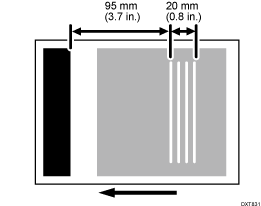
Cause:
The image transfer roller vibrates when the leading edge of a solid-fill image enters the image transfer unit's entrance or its trailing edge exits from the unit's exit.
The vibration is transmitted to the charge roller via the drum, and the periodic fluctuation of the gap between the drum and the charge roller causes electrical potential fluctuation on the drum surface, resulting in banding.
Occurrence conditions:
When printing an image including solid-fill parts
When printing an image with half-tone images in the area from the solid-fill parts to the point 95 mm (3.7 inches) away from the trailing edge of the paper
Solutions: If printing an original including both solid-fill and half-tone parts on the same page
 Can you rotate the original by 90 or 180 degrees?
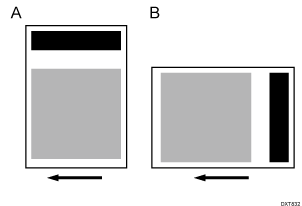
A: Rotation by 90 degrees
B: Rotation by 180 degrees
Yes | Rotate the original by 90 or 180 degrees. |
No | Proceed to Step 3. |
 Print the image. Has the problem been resolved?
Yes | Finished! |
No | Go to the next step. |
 If the paper is not registered as custom paper, register the brand of the paper.
 In [Detailed settings] for the custom paper you are using, select 1231: [Print Speed], and then set the value in the following corresponding settings to [Middle].
1231-01: Print Speed: BW/FC/FCS: BW/FC/FCS
1231-02: Print Speed: FCS: Clear/Special
1231-03: Print Speed: FCS: White
1231-04: Print Speed: FCS: Metallic
1231-06: Print Speed: S: Clear/Special
1231-07: Print Speed: S: White
1231-08: Print Speed: S: Metallic
1231-10: Print Speed: BW/FC/FCS: Fuser Setting HQ: BW/FC/FCS
1231-11: Print Speed: FCS: Fuser Setting HQ: Clear/Special
1231-12: Print Speed: FCS: Fuser Setting HQ: White
1231-13: Print Speed: FCS: Fuser Setting HQ: Metallic
1231-15: Print Speed: S: Fuser Setting HQ: Clear/Special
1231-16: Print Speed: S: Fuser Setting HQ: White
1231-17: Print Speed: S: Fuser Setting HQ: Metallic

You can reduce the vibration of the intermediate transfer roller by decreasing the print speed, but doing so also reduces throughput.
If set to "Middle", throughput is reduced to 85% of that when set to "High".
 Print the image. Has the problem been resolved?
Yes | Finished! |
No | Go to the next step. |
 Set the value in the following corresponding settings to [Low].
If set to "Low", throughput is reduced to 50% of that when set to "Middle".
 Print the image. Has the problem been resolved?
Yes | Finished! |
No | No further improvement is likely. |
Select "Clear/Special" when using Neon Yellow, Neon Pink, or Invisible Red. Select "Metallic" when using Gold or Silver.
Solutions: If printing an original that has solid-fill images at the trailing edge of a page and half-tone images at the leading edge of the next page
Can you rotate the original by 90 or 180 degrees?
A: Rotation by 90 degrees
B: Rotation by 180 degrees
Yes | Rotate the original by 90 or 180 degrees. |
No | Proceed to Step 3. |
Print the image. Has the problem been resolved?
Yes | Finished! |
No | Go to the next step. |
If the paper is not registered as custom paper, register the brand of the paper.
In [Detailed settings] for custom paper, select 1237: [Print Speed (Sheet Interval Adj)], and then adjust the interval between sheets according to the mode used.
1237-01: Print Speed (Sheet Interval Adj): BW/FC/FCS: BW/FC/FCS
1237-02: Print Speed (Sheet Interval Adj): FCS: Clear/Special
1237-03: Print Speed (Sheet Interval Adj): FCS: White
1237-04: Print Speed (Sheet Interval Adj): FCS: Metallic
By increasing the interval between sheets, the banding position can be shifted from the halftone area on the next page. However, throughput will be reduced due to the increased interval between sheets.
Print the image. Has the problem been resolved?
Yes | Finished! |
No | No further improvement is likely. |
Select "Clear/Special" when using Neon Yellow, Neon Pink, or Invisible Red. Select "Metallic" when using Gold or Silver.