


Patchy Images on Text or at the Edge of the Image
Dropouts (character voids) occur when characters or lines are printed in color mode.
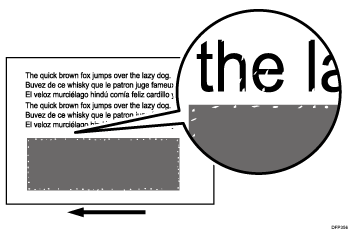
Cause:
The amount of toner adhesion is greater on colored text and on the edge of solid-fill images, which may occur when toner is compressed by pressure during transfer.
Occurrence conditions:
Printing is performed at high temperature or humidity
Printing solid fills
When printing is performed on slippery paper such as glossy coated paper
When printing is performed on small size of paper

Patchy images caused by paper transfer are prone to occur at the edges of text or solid-fill images using two or more colors.
Solution:
(a) Adjusting the image density
 Enable image processing.
Launch Fiery Command WorkStation.
Click the job properties for the print image.
Click the color tab.
Click the color input.
Check the CMYK source setting. If it is set to "ColorWise OFF", change it to another setting.
 When printing images with high toner adhesion and density, enable Toner Reduction.
Launch Fiery Command WorkStation.
Click the job properties for the print image.
Click the image tab.
Select Toner Reduction.
 Print the image. Has the problem been resolved?
Yes | Finished! |
No | Go to the next step. |
 In the [Machine: Image Quality] group on the [Operator Adjust.] menu, select 0201: [Execute Image Quality Adjustment] and execute [Adjust Image Density].
 Adjust the amount of toner adhesion.
In Adjustment Settings for Operators, select 0202-01 to -05 [Maximum Image Density] and change the amount of toner adhesion.
In the case of [Detailed settings] for custom paper, decrease the image density in the following settings.
1201-01: Max Image Density: Black
1201-02: Max Image Density: Cyan
1201-03: Max Image Density: Magenta
1201-04: Max Image Density: Yellow
1201-05: Max Image Density: Clear/Special
1201-06: Max Image Density: White
1201-07: Max Image Density: Metallic
Select "Clear/Special" when using Neon Yellow, Neon Pink, or Invisible Red. Select "Metallic" when using Gold or Silver.
Doing this may cause color tones to change.
(b) Adjusting the paper transfer speed
If the paper is not registered as custom paper, register the brand of the paper.
In [Detailed settings] for the custom paper you are using, select 1341: [Motor Speed], decrease the value in 02: [Paper Transfer Belt] by 0.1%.
Print the image. Has the problem been resolved?
Yes | Finished! |
No | Start over from Step 2. If the problem persists even if you decrease the value to -0.5, there is no other solution. |
Errors may occur depending on the degree of adjustment and conditions. In such a case, contact your service representative.
Decreasing the paper transfer roller speed may cause the image to expand or contract in the subscanning direction. Such a problem may be resolved by increasing the value for [Image Magnification] in [Manual Adjustment] in [Adjust image position] on the [Media] hub.
(c) Improving the Operating Environment / Changing the Pape
Avoid high temperature and high humidity environments.
If paper can be changed, change to non-slippery paper.
If throughput can be reduced, select 1237: [Print Speed (Sheet Interval Adj)] in [Detailed settings] for custom paper, and then decrease the value.
Reducing throughput can reduce the occurrence of patchy images when printing with special toner (clear).