


River Marks (Worm Tracks)
Worm tracks appear because of uneven density when printing is performed on synthetic paper, film media (transparencies), clear files, and on thin paper in grain direction.
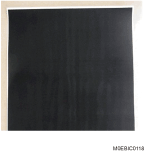
Cause:
Synthetic paper, film media (transparencies), clear files
This occurs when the paper ripples at the fusing nip entrance and exit and the image comes into non-pressure contact with the fusing belt.
Thin paper
The paper ripples in the paper grain direction, resulting in uneven heat applied to the paper at the fusing nip entrance and exit.
When thin paper is fed for duplex printing, the paper is fed through the fusing nip again while rippling in the paper grain direction, causing uneven heat applied to the paper at the fusing nip entrance and exit.
Occurrence conditions:
When printing on synthetic paper or film media (particularly noticeable on thin paper without rigidity)
When printing a full-page solid-fill image
When feeding thin paper in the grain direction
Solution: (Synthetic paper, film media (transparencies), clear files)
 In the printer driver screen of Fiery Command WorkStation, set Fuser Setting HQ mode.

When using paper with a thickness of Paper Weight 6 to 9, throughput may be reduced.
Print 10 or more A3 sheets. Has the problem been resolved?
Yes | Finished! |
No | Go to next step. |
 If the paper is not registered as custom paper, register the brand of the paper.
 If there is room to reduce the print speed (from "High" or from "Middle"), and if the reduced throughput does not cause a problem, go to the next step.
Otherwise, perform the procedure from Step 5 in "(b) Changing the fusing temperature (If [Print Speed] is set to [Low])".
 In [Detailed settings] for the custom paper you are using, select 1231: [Print Speed], and then decrease the value in the following corresponding settings by one level.
Productivity Priority
1231-01: Print Speed: BW/FC/FCS: BW/FC/FCS
1231-02: Print Speed: FCS: Clear/Special
1231-03: Print Speed: FCS: White
1231-04: Print Speed: FCS: Metallic
1231-06: Print Speed: S: Clear/Special
1231-07: Print Speed: S: White
1231-08: Print Speed: S: Metallic
High Quality
1231-10: Print Speed: BW/FC/FCS: Fuser Setting HQ: BW/FC/FCS
1231-11: Print Speed: FCS: Fuser Setting HQ: Clear/Special
1231-12: Print Speed: FCS: Fuser Setting HQ: White
1231-13: Print Speed: FCS: Fuser Setting HQ: Metallic
1231-15: Print Speed: S: Fuser Setting HQ: Clear/Special
1231-16: Print Speed: S: Fuser Setting HQ: White
1231-17: Print Speed: S: Fuser Setting HQ: Metallic
If the present value is [High], select [Middle]. If it is [Middle], select [Low].
When decreasing the print speed to [Middle] | Go to "(a) Changing the fusing temperature (If [Print Speed] is set to [Middle])". |
When decreasing the print speed to [Low] | Go to "(b) Changing the fusing temperature (If [Print Speed] is set to [Low])". |
(a) Changing the fusing temperature (If [Print Speed] is set to [Middle])
Select 1232: [Fusing Temperature], and then decrease the value in the following corresponding settings by 5°C.
Productivity Priority
1232-01: Fusing Temperature: BW/FC/FCS: Heat Roller Temp
1232-06: Fusing Temperature: FCS: Heat Roller Temp: Clear/Special
1232-07: Fusing Temperature: FCS: Heat Roller Temp: White
1232-08: Fusing Temperature: FCS: Heat Roller Temp: Metallic
1232-26: Fusing Temperature: S: Heat Roller Temp: Clear/Special
1232-27: Fusing Temperature: S: Heat Roller Temp: White
1232-28: Fusing Temperature: S: Heat Roller Temp: Metallic
High Quality
1232-46: Fusing Temperature: BW/FC/FCS: Fuser Setting HQ: Heat Roller Temp
1232-51: Fusing Temperature: FCS: Fuser Setting HQ: Heat Roller Temp: Clear/Special
1232-52: Fusing Temperature: FCS: Fuser Setting HQ: Heat Roller Temp: White
1232-53: Fusing Temperature: FCS: Fuser Setting HQ: Heat Roller Temp: Metallic
1232-71: Fusing Temperature: S: Fuser Setting HQ: Heat Roller Temp: Clear/Special
1232-72: Fusing Temperature: S: Fuser Setting HQ: Heat Roller Temp: White
1232-73: Fusing Temperature: S: Fuser Setting HQ: Heat Roller Temp: Metallic
Print 10 or more A3 sheets. Has the problem been resolved?
Yes | Go to the next step. |
No | Start over from Step 1. |
Is the toner fusibility within the permissible range?
The required level of fusibility is as follows.
The printed image does not come off.
The toner does not come off even if it is lightly rubbed by a nail.
The toner does not come off even if it is rubbed by the cloth for cleaning the contact glass.
Yes | Finished! |
No | Change the print speed to "Low". Go to "(b) Changing the fusing temperature (If [Print Speed] is set to [Low])". |
(b) Changing the fusing temperature (If [Print Speed] is set to [Low])
Select 1232: [Fusing Temperature], and then decrease the value in the following corresponding settings by 20°C.
Set the value in the following corresponding settings to 0°C.
Productivity Priority
1232-02: Fusing Temperature: BW/FC/FCS: Correct Temp: Initial Feed
1232-10: Fusing Temperature: FCS: Correct Temp: Initial Feed: Clear/Special
1232-11: Fusing Temperature: FCS: Correct Temp: Initial Feed: White
1232-12: Fusing Temperature: FCS: Correct Temp: Initial Feed: Metallic
1232-30: Fusing Temperature: S: Correct Temp: Initial Feed: Clear/Special
1232-31: Fusing Temperature: S: Correct Temp: Initial Feed: White
1232-32: Fusing Temperature: S: Correct Temp: Initial Feed: Metallic
High Quality
1232-47: Fusing Temperature: BW/FC/FCS: Fuser Setting HQ: Correct Temp: Initial Feed
1232-55: Fusing Temperature: FCS: Fuser Setting HQ: Correct Temp: Initial Feed: Clear/Special
1232-56: Fusing Temperature: FCS: Fuser Setting HQ: Correct Temp: Initial Feed: White
1232-57: Fusing Temperature: FCS: Fuser Setting HQ: Correct Temp: Initial Feed: Metallic
1232-75: Fusing Temperature: S: Fuser Setting HQ: Correct Temp: Initial Feed: Clear/Special
1232-76: Fusing Temperature: S: Fuser Setting HQ: Correct Temp: Initial Feed: White
1232-77: Fusing Temperature: S: Fuser Setting HQ: Correct Temp: Initial Feed: Metallic
Set the value in the following corresponding settings to 5°C.
Productivity Priority
1232-03: Fusing Temperature: BW/FC/FCS: Correct Temp: Pre-Feed
1232-14: Fusing Temperature: FCS: Correct Temp: Pre-Feed: Clear/Special
1232-15: Fusing Temperature: FCS: Correct Temp: Pre-Feed: White
1232-16: Fusing Temperature: FCS: Correct Temp: Pre-Feed: Metallic
1232-34: Fusing Temperature: S: Correct Temp: Pre-Feed: Clear/Special
1232-35: Fusing Temperature: S: Correct Temp: Pre-Feed: White
1232-36: Fusing Temperature: S: Correct Temp: Pre-Feed: Metallic
High Quality
1232-48: Fusing Temperature: BW/FC/FCS: Fuser Setting HQ: Correct Temp: Pre-Feed
1232-59: Fusing Temperature: FCS: Fuser Setting HQ: Correct Temp: Pre-Feed: Clear/Special
1232-60: Fusing Temperature: FCS: Fuser Setting HQ: Correct Temp: Pre-Feed: White
1232-61: Fusing Temperature: FCS: Fuser Setting HQ: Correct Temp: Pre-Feed: Metallic
1232-79: Fusing Temperature: S: Fuser Setting HQ: Correct Temp: Pre-Feed: Clear/Special
1232-80: Fusing Temperature: S: Fuser Setting HQ: Correct Temp: Pre-Feed: White
1232-81: Fusing Temperature: S: Fuser Setting HQ: Correct Temp: Pre-Feed: Metallic
Print 10 or more A3 sheets. Has the problem been resolved?
Yes | Proceed to Step 7. |
No | Go to the next step. |
 Go back to 1232: [Fusing Temperature] and decrease the fusing heat roller's temperature by 5°C.
 Print 10 or more A3 sheets. Has the problem been resolved?
Yes | Proceed to Step 7. |
No | Start over from Step 5. |
 Is the toner fusibility within the permissible range?
The required level of fusibility is as follows.
The printed image does not come off.
The toner does not come off even if it is lightly rubbed by a nail.
The toner does not come off even if it is rubbed by the cloth for cleaning the contact glass.
Yes | Finished! |
No | Contact your service representative. |
Select "Clear/Special" when using Neon Yellow, Neon Pink, or Invisible Red. Select "Metallic" when using Gold or Silver.
After performing the solution, it is recommended to perform the color calibration of the external printer controller.
Solution: (Thin paper)
Change the paper feed direction from the grain to cross-grain direction.
If the problem persists or is not reduced, there is no other solution.