


Uneven Density (Metallic Paper or Textured Paper)
Vertical Band of Uneven Density in Two-Color Solid-Fill Images.
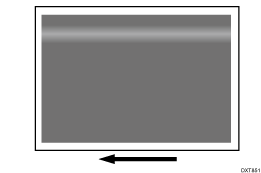
Cause:
On metallic and textured papers, the image transfer area is narrower. If density fluctuation due to development occurs, it affects the image transfer, causing uneven density.
Solution:
 If the paper is not registered as custom paper, register the brand of the paper.
 In [Detailed settings] for the custom paper you are using, select 1201: [Max Image Density], and then increase the value for the specified color by "5".
1201-01: Maximum Image Density: Black
1201-02: Maximum Image Density: Cyan
1201-03: Maximum Image Density: Magenta
1201-04: Maximum Image Density: Yellow
1201-05: Maximum Image Density: Clear/Special
1201-06: Maximum Image Density: White
1201-07: Maximum Image Density: Metallic
 Print the image. Has the problem been resolved?
Yes | Finished! |
No | Go to the next step. |

Increasing the value increases the density. If it becomes too thick by the abovementioned adjustment, increase the value by one step at a time.
Toner consumption increases as the density is increased.
 Select 1212: [Image Transfer Output], and then decrease the value in the following corresponding settings by "5"
1212-01: Image Transfer Output: BW: Black
1212-02: Image Transfer Output: FC/FCS: Black
1212-03: Image Transfer Output: FC/FCS: Cyan
1212-04: Image Transfer Output: FC/FCS: Magenta
1212-05: Image Transfer Output: FC/FCS: Yellow
1212-06: Image Transfer Output: FC/FCS: Clear/Special
1212-07: Image Transfer Output: FC/FCS: White
1212-08: Image Transfer Output: FC/FCS: Metallic
1212-10: Image Transfer Output: S: Clear/Special
1212-11: Image Transfer Output: S: White
1212-12: Image Transfer Output: S: Metallic
 Select 1214: [Paper Transfer Output], and then increase the value in the following corresponding settings by "2".
1214-01: Paper Transfer Output: BW: Side 1
1214-02: Paper Transfer Output: BW: Side 2
1214-03: Paper Transfer Output: BW: Side 1: AC
1214-04: Paper Transfer Output: BW: Side 2: AC
1214-05: Paper Transfer Output: FC/FCS: Side 1
1214-06: Paper Transfer Output: FC/FCS: Side 2
1214-07: Paper Transfer Output: FC/FCS: Side 1: AC
1214-08: Paper Transfer Output: FC/FCS: Side 2: AC
1214-09: Paper Transfer Output: FCS: Side 1
1214-10: Paper Transfer Output: FCS: Side 2
1214-11: Paper Transfer Output: FCS: Side 1: AC
1214-12: Paper Transfer Output: FCS: Side 2: AC
1214-13: Paper Transfer Output: S: Side 1: Clear/Special
1214-14: Paper Transfer Output: S: Side 1: White
1214-15: Paper Transfer Output: S: Side 1: Metallic
1214-17: Paper Transfer Output: S: Side 2: Clear/Special
1214-18: Paper Transfer Output: S: Side 2: White
1214-19: Paper Transfer Output: S: Side 2: Metallic
1214-21: Paper Transfer Output: S: Side 1: AC: Clear/Special
1214-22: Paper Transfer Output: S: Side 1: AC: White
1214-23: Paper Transfer Output: S: Side 1: AC: Metallic
1214-25: Paper Transfer Output: S: Side 2: AC: Clear/Special
1214-26: Paper Transfer Output: S: Side 2: AC: White
1214-27: Paper Transfer Output: S: Side 2: AC: Metallic
Changing the value may cause black color to become faint when printing in full color or white spots to appear at low temperature and humidity. Adjust the value while checking its result.
 Print the image. Has the problem been resolved?
Yes | Finished! |
No | No further improvement is likely. |
Select "Clear/Special" when using Neon Yellow, Neon Pink, or Invisible Red. Select "Metallic" when using Gold or Silver.