


Multiple Horizontal Glossy Streaks (Glossy Ghosting)
Multiple horizontal glossy lines appear.
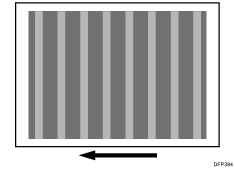
Cause:
When continuous printing of images with high coverage is performed, the toner components (toner wax) adheres to the fusing belt, causing the glossy ghosting in the margins at the leading and trailing edges of the paper to remain on the fusing belt.
Occurrence conditions:
Thick paper is used.
A solid image is printed
Solution:
 In the [Machine: Maintenance] group on the [Operator Adjust.] menu, select 0508: [Manually Smooth Fusing Belt] and execute 02: [Uneven Gloss (Short Time)].
 Print and check if the issue is within the acceptable range. (Print 50 or more A3 sheets.)
Yes | Go to the next step. |
No | Execute 02: [Uneven Gloss (Short Time)] in 0508: [Manually Smooth Fusing Belt] until the problem is resolved. |
 Register the paper in the custom paper profile.
 To prevent this problem, polish the fusing belt by the fusing belt smoothing roller more frequently. In [Detailed settings] for the custom paper you are using, select 1243: [Fusing Belt Smoothing], and then set the value in 01: [For Uneven Gloss (Short Time)] to [Most Frequently].
 Print and check if glossy streaks have been resolved. (50 or more sheets of A3 paper)
Yes | Finished! |
No | Go to the next step. |
 In [Detailed settings] for the custom paper you are using, select 1237: [Print Speed (Sheet Interval Adj)], and then decrease the value in the following corresponding settings by 20%.
1237-01: Print Speed (Sheet Interval Adj): BW/FC/FCS: BW/FC/FCS
1237-02: Print Speed (Sheet Interval Adj): FCS: Clear/Special
1237-03: Print Speed (Sheet Interval Adj): FCS: White
1237-04: Print Speed (Sheet Interval Adj): FCS: Metallic
For example, if the present value is "100%", change it to "80%".

If there is no room to reduce the print speed (interval between printing each sheet), there is no other solution.
 Print and check if the issue is within the acceptable range. (Print 50 or more A3 sheets.)
Yes | Finished! |
No | Start over from Step 6. |
After performing the solution, it is recommended to perform the color calibration of the external printer controller.
Select "Clear/Special" when using Neon Yellow, Neon Pink, or Invisible Red. Select "Metallic" when using Gold or Silver.