


Adding a Paper Size to Custom Paper
Add a new paper size to Custom Paper when using paper of the Weight of Paper, Paper Weight, and other paper attributes that are the same as the one registered in Custom Paper, but differs in its paper size.
 Press the [Media] hub.
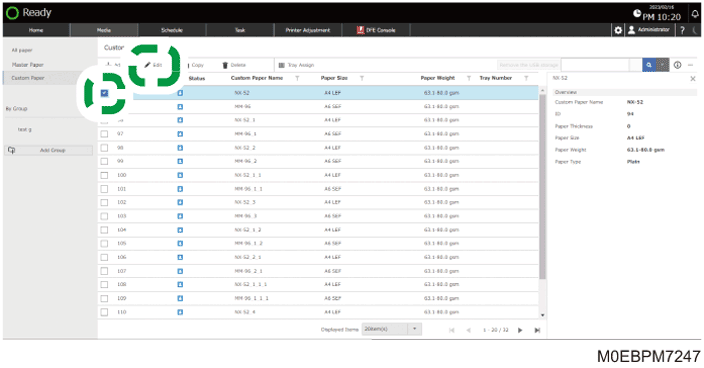
Press [Custom Paper] or a group to specify the size from each list.
 Select the check box of the paper to add a new paper size, and then press [Edit].
 Press [Add Size].
 Specify a paper size, and then press [OK].
When Adding a Paper Size That Is Not Listed
Specify [Create New Custom Size], and then Specify "Unit".
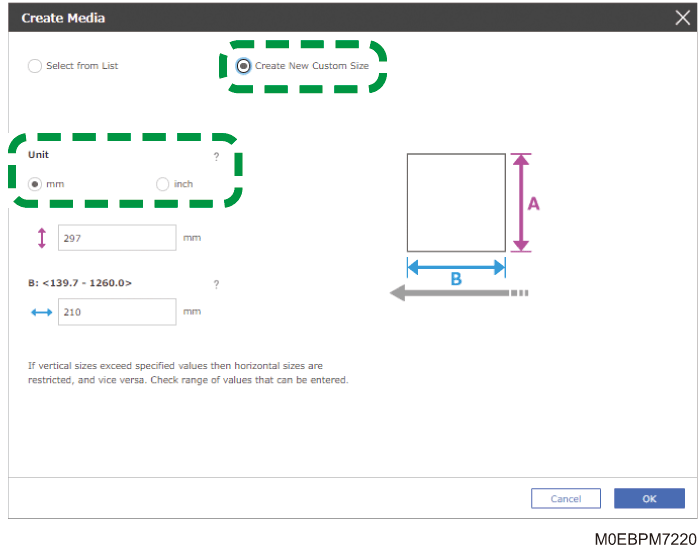
Enter the paper size, and then press [OK].
 Press [OK].
The newly specified paper size is added to Custom Paper.
Deleting a Paper Size
Press the [Media] hub.
Press [Custom Paper] or a group to specify the size from each list.
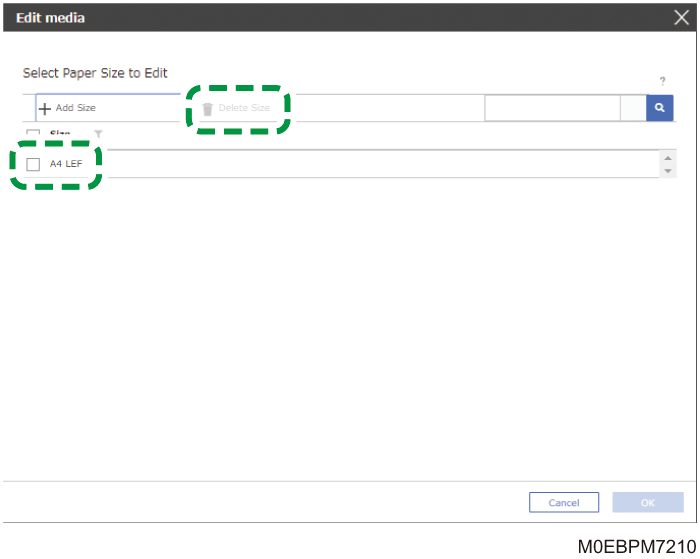
Select the check box of the paper to delete a paper size, and then press [Edit].
Select the check box of the paper size to delete, and then press [Delete Size].
Press [OK] [Cancel].
The selected paper size is deleted from Custom Paper.