


How to Register Paper Scanned by the Media Identification Unit as Custom Paper
Registering a new custom paper with the Media Identification Unit
 Press the [Media] hub
  [Add].
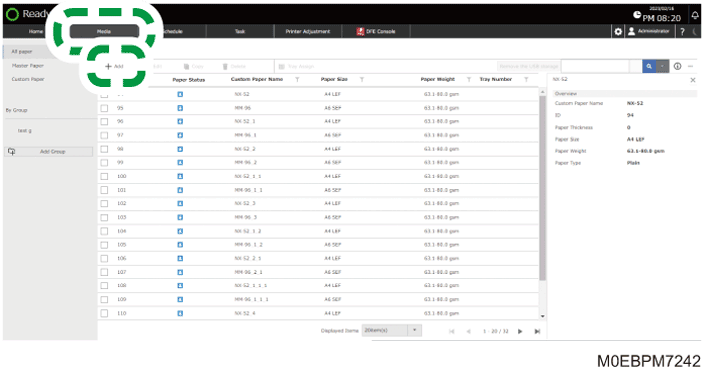
 Specify "Paper Size", and then press [OK].
 Press [Media Identification Unit].
 Specify "Custom Paper Name", "Paper Type", "Paper Color", "Prepunched".
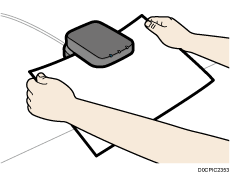
 Insert paper into the Media Identification Unit, and then remove it.
Hold the edges of the paper with both hands when inserting the paper.
Keep the paper flat as you pull it out.
 Press [OK][OK].
The information scanned from the paper is applied, and registered as a "Custom Paper".
Modifying the registered custom paper settings using the Media Identification Unit

You cannot change the settings of the paper that is already registered on a tray. Assign another paper to the tray on which the paper is assigned. For details, see Changing Tray Paper Settings .
The settings of the paper that is being edited on the color controller cannot be changed.
Press the [Media] hub [Custom Paper].
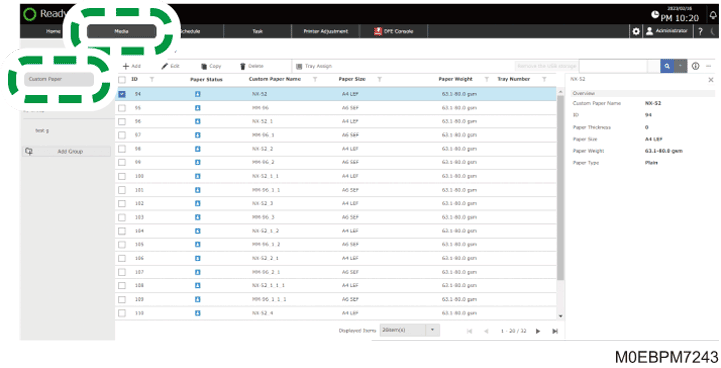
Select the check box of the paper to copy, and press [Edit].
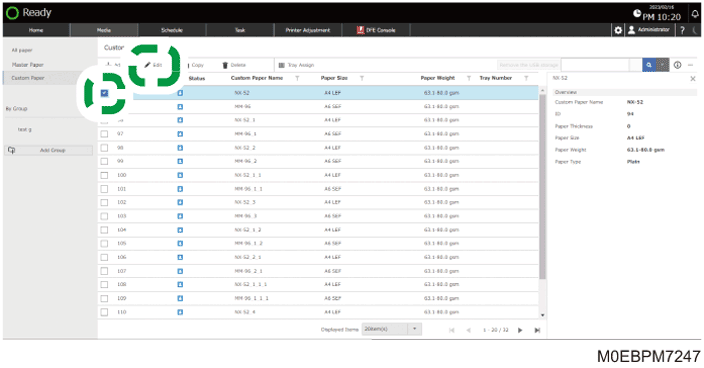
Select the check box of the paper size to change, and then press [OK].
To specify all the paper sizes, select the check box of "Size".
When using a paper size that is not in the list, press [Add Size], and add the paper size to use.
Specify the settings if "Paper Type", "Paper Color", and "Prepunched" are not specified.
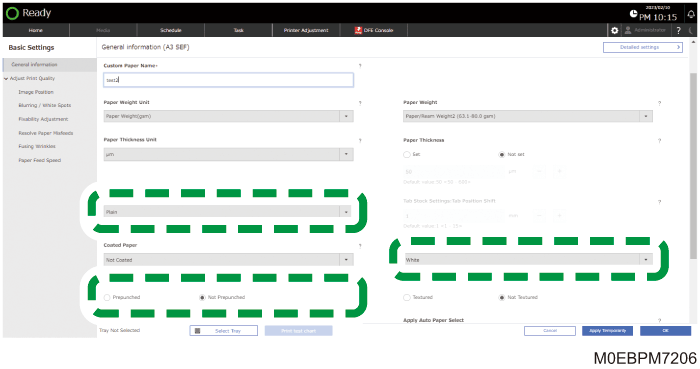
Press [Media Identification Unit].
Insert paper into the Media Identification Unit, and then remove it.
Hold the edges of the paper with both hands when inserting the paper.
Keep the paper flat as you pull it out.
 Select [Overwrite Search Settings Only] or [Overwrite Search And Paper Settings], and then press [OK].
When you select [Overwrite Search Settings Only], the setting values in "Weight of Paper", "Coated Paper", "Textured", Adjust Print Quality", and Detailed settings" will not be over-written.
 Press [OK].
The information scanned from the paper is applied, and registered as a "Custom Paper".
Specifying a custom paper for paper trays with the Media Identification Unit
Press the [Home] hub.
In the [Tray Status] tile, specify the tray on which to change the paper settings, and then press [Paper Assignment].
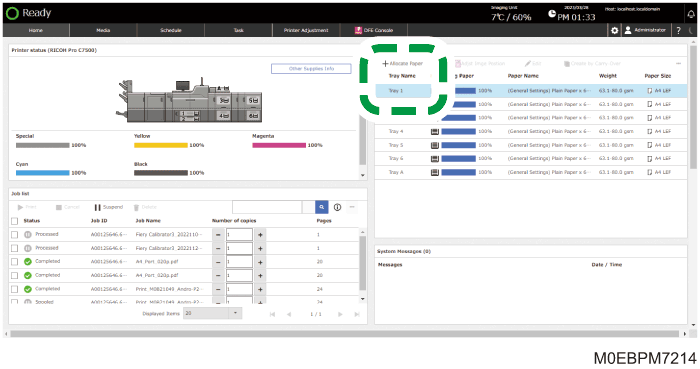
Press the Advanced search ( ).
).
Press [Media Identification Unit].
Insert paper into the Media Identification Unit, and then remove it.
Hold the edges of the paper with both hands when inserting the paper.
Keep the paper flat as you pull it out.
The list of custom paper whose configurations are similar to those of the scanned paper appears.
Specify the custom paper to configure, and press [OK].
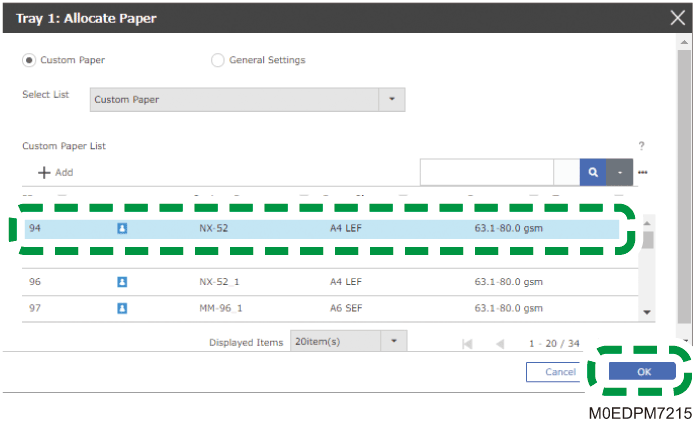
Select the check box of the paper to register, and press [OK].
The selected paper is assigned to the tray.