


Screen Configuration of the [Task] Hub
Press [Task] on the navigation bar to display [Task] hub.
Displays the list of tasks for the logged-in user. Tasks such as the adjusting or cleaning the machine, or replacing a consumable can be grouped by category or item.
Tasks for adjusting the machine are referred to as "Operational Task", and tasks for cleaning the machine or replacing consumables are referred to as "Maintenance Task".
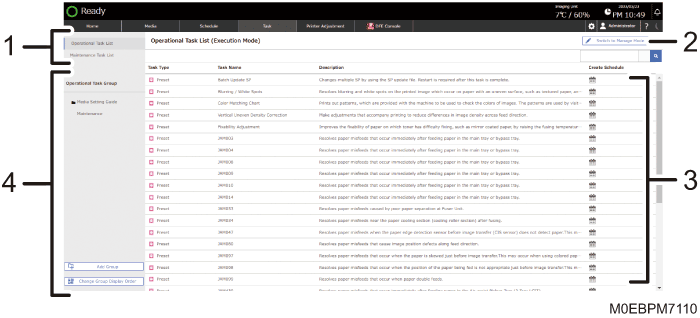
Operational Task Group
Execution Mode
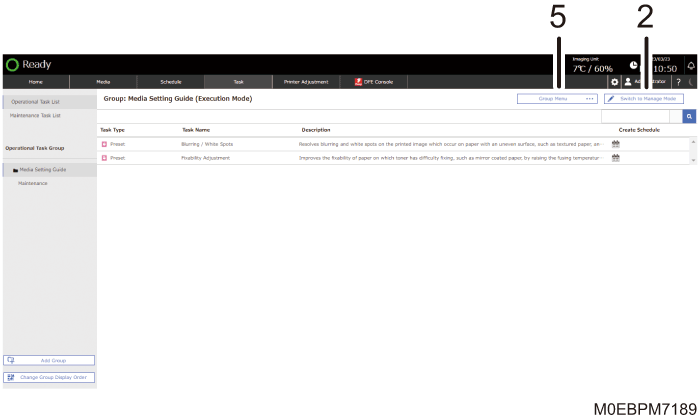
Management Mode
Operational Task List/Maintenance Task List
Switches between different task types to display.
[Switch to Execute Mode]/[Switch to Manage Mode]
Switches between the privileges to manage tasks.
Execution Mode
You can create or execute tasks.
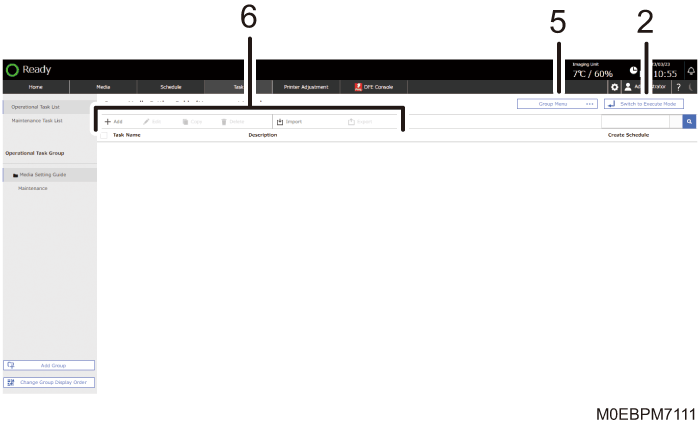
Management Mode
In addition to creating and executing a task, you can also add, edit, copy, delete, or import/export an "Operation Task".
Display Task Details
Displays a registered task. Specify the task to perform, and then follow the instructions that appear on the screen to perform the task. You can also print test charts using the adjustment value specified in the task.
Operational Task Group
You can group operation tasks according to the purpose or type of task.
Operational Task Group
Displays the operation task groups that you created. The "Paper Setting Guide" and "Maintenance" groups are registered in the factory default setting.
[Add Group]
Enter the group name, and then press [OK].
You cannot add the same group name to the same hierarchy.
[Change Group Display Order]
Changes the order of the group that appears in an operational task group.
[Group Menu]
You can add, delete, or edit a group. Select an item from the following in the menu:
Add Subgroup to Group
Edit Group Name
Delete Group
Add Task to Group
Delete Task from Group
Create, Edit, Import/Export an "Operation Task"
[Add]
[Edit]
[Copy]
[Delete]
In the manage mode, you can create an operation task as a new one or one that is based on a template, enter the task name, and then add or edit the task.
[Export]
Exports the operational task that you created.
When exporting a task from the control panel of the machine: the exported task is stored on the USB memory connected to the USB host interface.
When exporting from a client computer: you can specify any accessible destination to store the exported task.
You can enter up to 50 characters (alphanumeric characters and some symbols) from the control panel as the file name.
[Import]
Imports operational tasks. Specify one or more operational tasks in a file to import.
You can import only the file that is exported from the machine.
When importing a task onto the control panel of the machine: import a task from the USB memory device connected to the USB host interface.
When importing to a client computer: you can import a task from any accessible storage device.
If the total number of tasks, including tasks to be imported, exceeds 1,000, importing is aborted Tasks are imported in the order in the task list displayed.
When importing a task of the same name, you can overwrite the existing task, save the imported task under a new name, or cancel importing.

You may not be able to recover the original setting values when you cancel execution of a task. If this occurs, wait for a while, or save and terminate the task as is.
If a setting item that cannot be applied to the paper size that is selected in a task related to the paper settings, the corresponding paper setting becomes invisible and cannot be specified.
If another user executes a task while you are editing it, the edited setting cannot be saved. Only the task name can be changed while the task is being executed.