Screen Configuration of the [Home] Hub
The [Home] hub is displayed in the factory default setting when you turn on the power of the machine.
The [Home] hub shows the status of the printer and its trays, system messages, job list, and other information.

Do not apply strong impact or force to the screen, or it may be damaged. Maximum force allowable is approx. 30N (approx. 3 kgf). (N = Newton, kgf = Kilogram force. 1 kgf = 9.8N.)
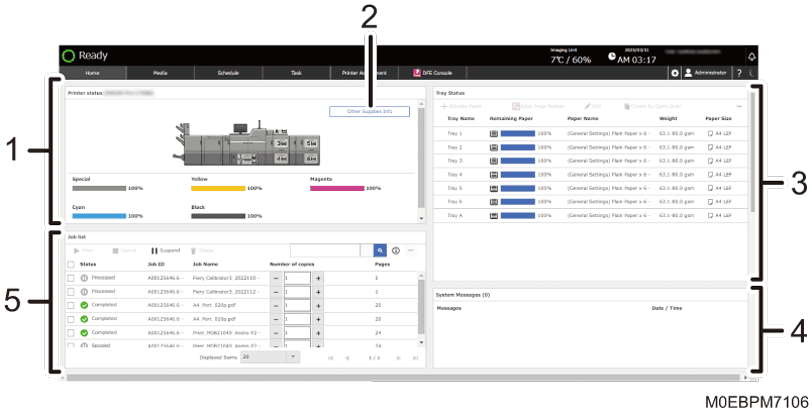
[Printer status] tile
Shows the printer status including the remaining amount of toner and paper, and other information.
When the paper runs out or a paper jam occurs, the corresponding part is displayed in red.
Other Supplies Info
Displays the supplies that require replacement or replenishment. It also displays the available space or remaining amount of a consumable. Press [Inquiry] to display the serial number and contact information.
[Tray Status] tile
Shows the list of trays, and the information and remaining amount of the paper (medium) that is loaded on each tray.
You can specify a tray with paper loaded, change the paper settings, adjust the position of printed images, and change other settings.
[System Messages] tile
Displays the messages sent from the system.
Select an item in the list to view its detailed information.
[Job list] tile
Displays the job queue of the DFE.
Search for a job to display. To display the thumbnail image and details of a job, select the job, and press the [
 ] icon.
You can cancel, pause, delete, or proceed with printing the job.
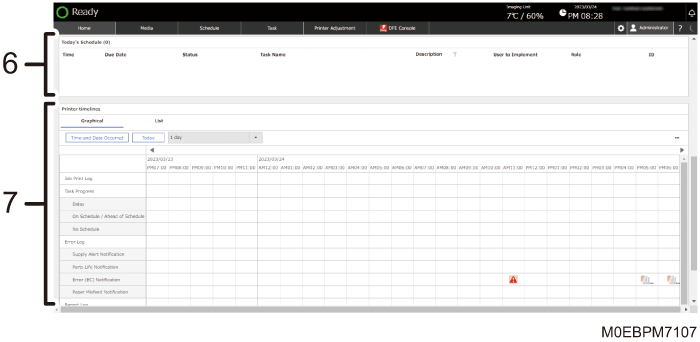
[Today's Schedule] tile
Displays the working schedule of the current day that is assigned to the user.
[Printer timelines] tile
Shows the event history including system configuration, maintenance, and errors.
You can display the event log of the specified date and time, or change the items to display.

You can connect to the control panel of the machine using a web browser on the client computer, and configure and operate the machine remotely. Enter "https://(IP address of the machine) :8080/dist" in the address bar of the web browser, and then press the Enter key to display the screen to operate the control panel of the machine.
Intuitive Screen Operation Using Fingertips
On each screen of the control panel, you can perform the following operation by touching the screen with your fingertips.
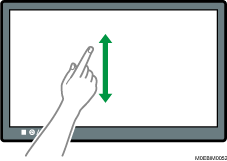
Flick (Scrolling the Screen)
Flick the screen up or down to scroll through the screens.