Printing in Black and White
Print a document in black and white only when you do not need to print it in color.
When printing a document with a small color area or a gray scale document, you can reduce the usage of the color toners by specifying Black and White print.
Configure the settings on the [Basic] tab.
-
Open a document to print on the computer, and display the setting screen of the printer driver from the print menu in the application.
-
Specify Paper Size, Paper Type, Orientation and other settings.
Basic Procedure for Printing Documents -
In [Color Mode:] on the [Basic] tab, select [Black and White].
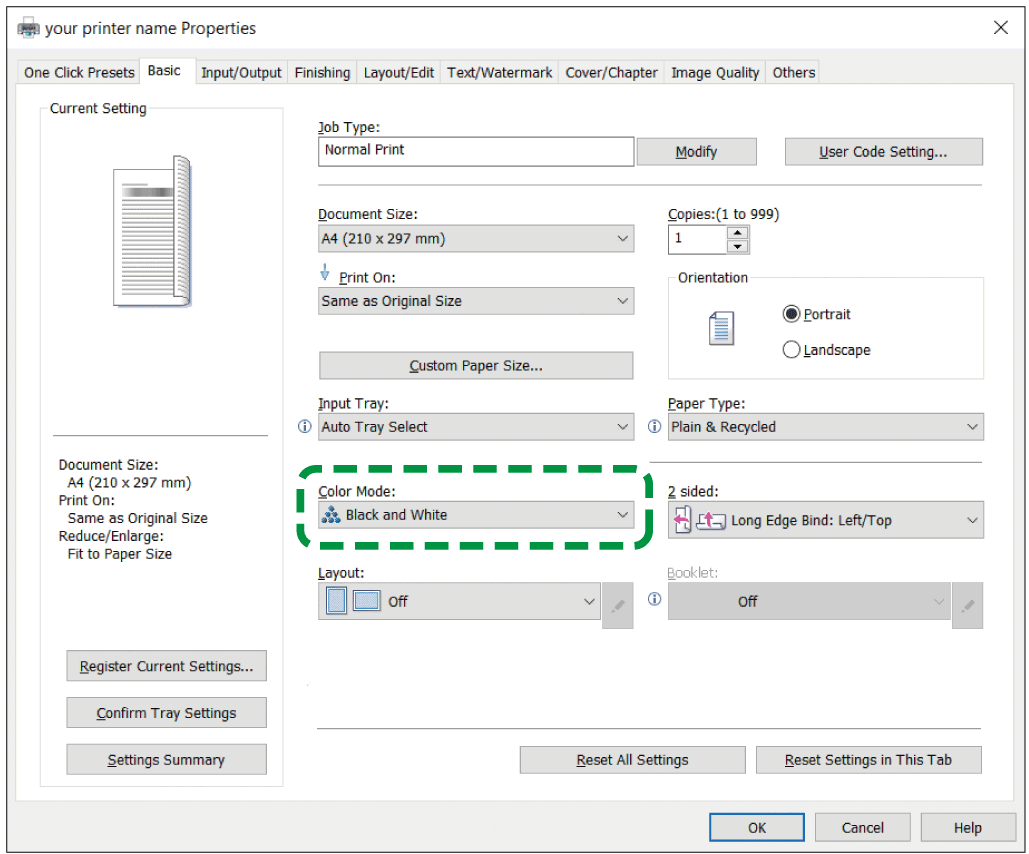
-
After completing the configuration, click [OK] to print.

-
In some combinations of applications and printer drivers, the color toners may be used to print even if [Black and White] is specified. To ensure that documents are printed in black and white, specify the following setting:
-
In [Adjust Image Quality/Color] on the [Image Quality] tab, select [Advanced Settings], and then click [Details] and set [Gray Reproduction] to [K (Black)].
-
Configure the settings in [Basic] on "Feature Sets" of [Printer Features].
-
Open a document to print on the computer, and display the setting screen of the printer driver from the print menu in the application.
-
Specify Paper Size, Orientation, Paper Type, and other settings.
Basic Procedure for Printing Documents -
Click "Color Mode" on [Basic] of "Feature Sets", and then select [Black and White].

-
After completing the configuration, click [Print] to print.