Printing on Envelopes
Load envelopes in the bypass tray or paper tray.
Load envelopes in the machine and change the Tray Paper Settings in the Control Panel.
-
Load an envelope in the Bypass Tray.
Types and orientations of envelopes
Bypass Tray
Side-opening envelopes

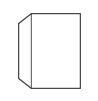
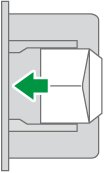
Flap: open
Bottom side of the envelope: left
Printing surface: lower side
Side-opening envelopes
 *1
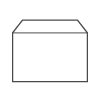
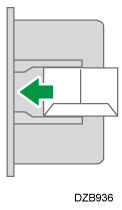
Flap: close
Bottom side of the envelope: back
Printing surface: lower side
*1To print in landscape orientation, specify [Rotate by 180 Degrees] in step 11.
-
On the Home screen, press [Settings].
-
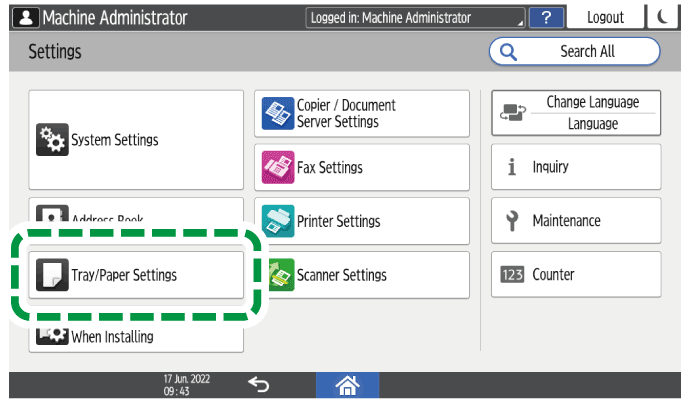
On the Settings screen, press [Tray/Paper Settings].
-
Press [Paper Size/Paper Type].
-
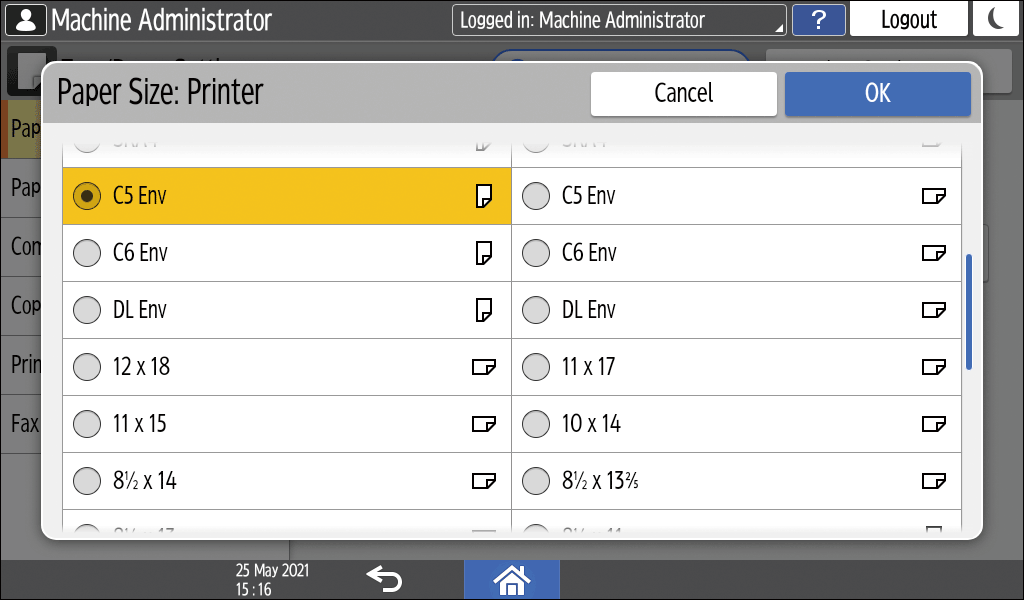
Press [Bypass Tray]
 [Paper Size: Printer], and then select the size of the envelopes.
-
If the size of the loaded envelope is not included in the list, select [Custom] and enter the value.
-
-
Press [OK].
-
Press [Paper Type/Thickness], and then select [Envelope] from "Paper Type".
Also, select the thickness of the loaded envelopes from "Paper Thickness".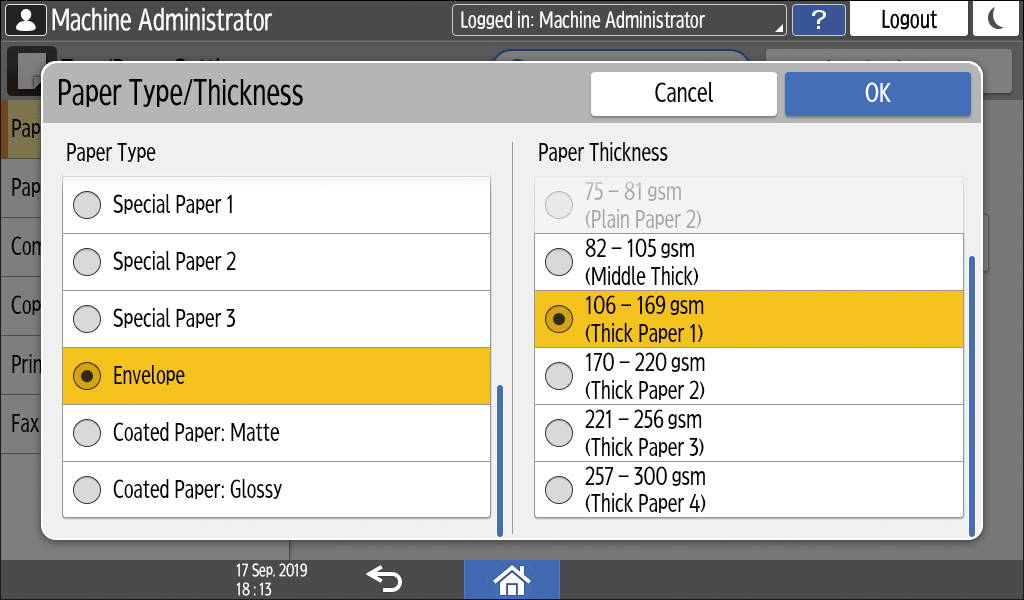
-
Press [OK] twice.
-
After completing the configuration, press [Home] (
 ).
-
Open a document to print in the computer, and display the setting screen of the printer driver from the print menu application.
-
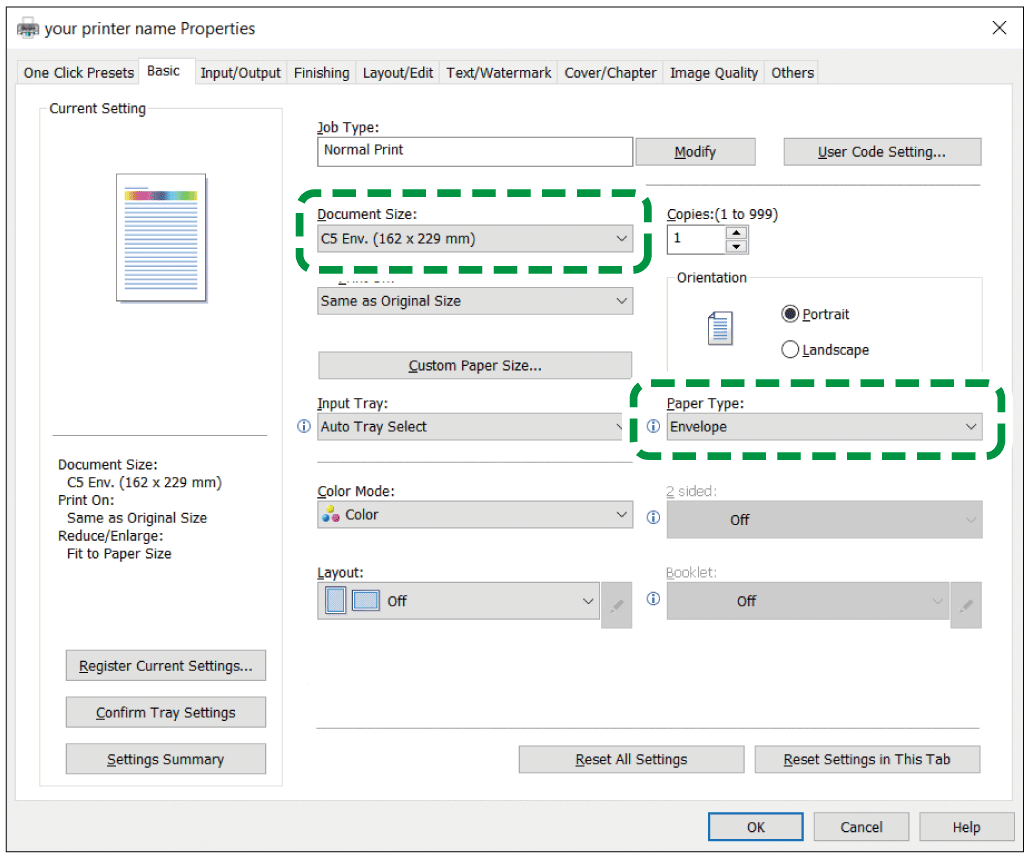
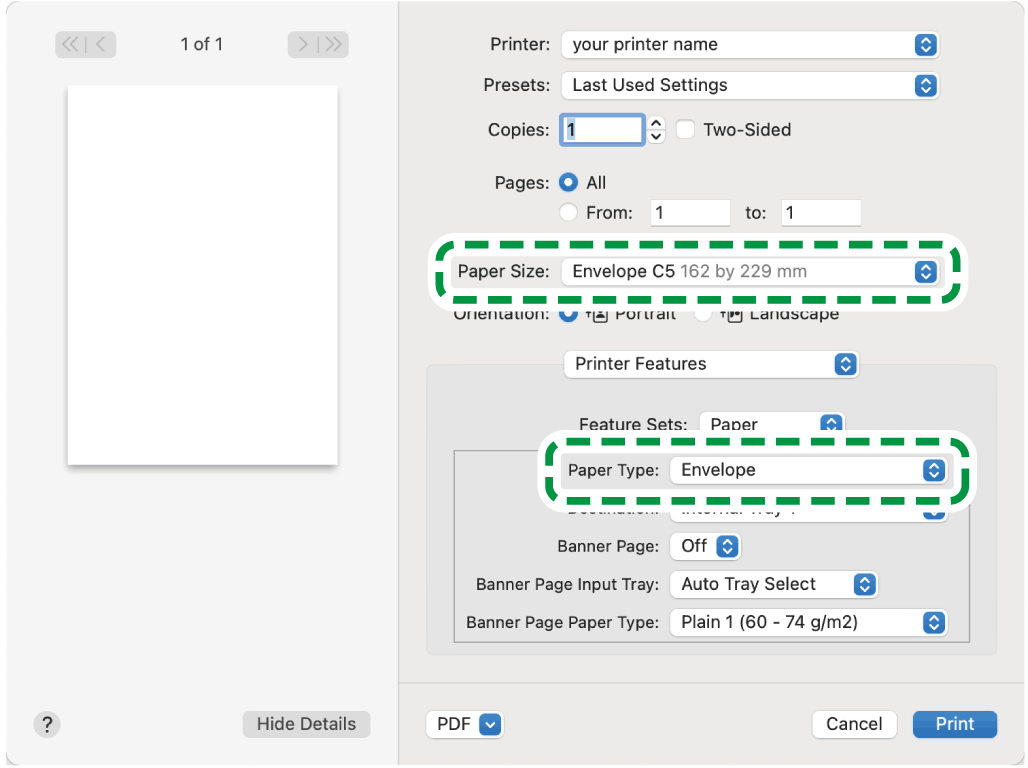
Specify the paper size and paper type.
Windows
-
Document Size: Select the envelope size. If the envelope size is not included among the options, enter the value in [Custom Paper Size...].
-
Paper Type: [Envelope]
You can specify a custom paper size, which is commonly used as the option of the Document Sizes.
See "Printing on Custom-sized Paper Loaded on the Bypass Tray", User Guide in English.
To print in landscape orientation, select the [Rotate by 180 Degrees] check box on the [Input/Output] tab, and then print.
macOS
-
Paper Size: Select the envelope size. If the envelope size is not included among the options, select [Manage Custom Sizes] and enter the value.
-
Paper Type: Envelope
To print in landscape orientation, select [On] for [Rotate by 180 degrees] in [Basic] in "Feature Sets".
-
-
Execute printing.
-
Load an envelope in the Paper Tray.
Types and orientations of envelopes
Tray 2 to 4
Side-opening envelopes
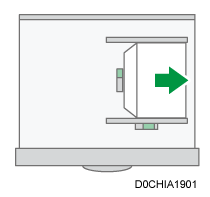
Flap: open
Bottom side of the envelope: right
Printing surface: upper side
Side-opening envelopes
*1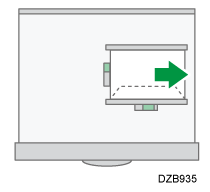
Flap: close
Bottom side of the envelope: back
Printing surface: upper side
*1To print in landscape orientation, specify [Rotate by 180 Degrees] in step 11.
-
On the Home screen, press [Settings].
-
On the Settings screen, press [Tray/Paper Settings].
-
Press [Paper Size/Paper Type], and then select the tray in which the envelopes are loaded.
-
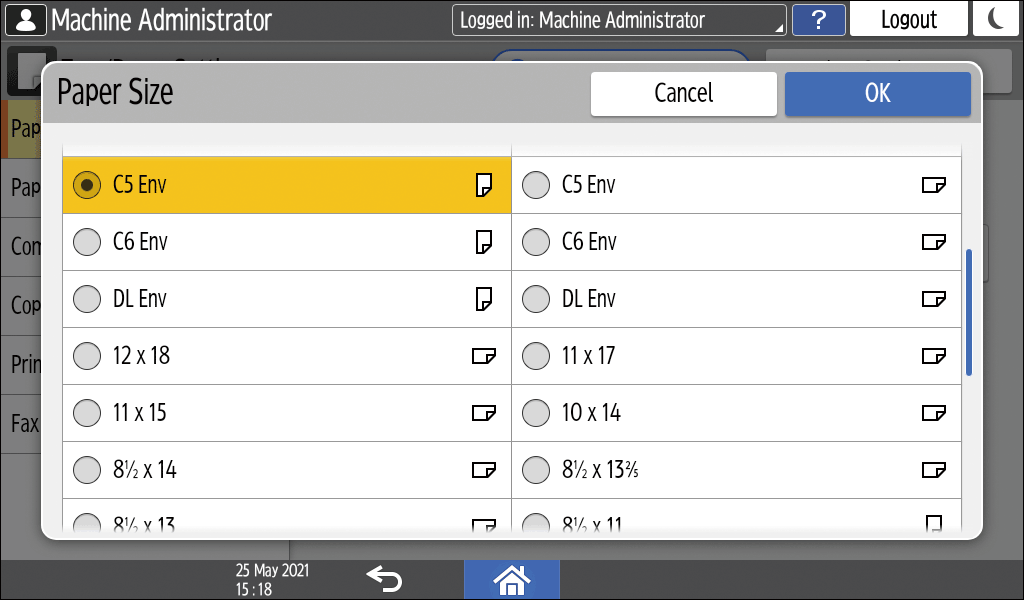
Press [Paper Size], and select the size of the envelopes.
-
If the size of the loaded envelope is not included in the list, select [Custom] and enter the value.
-
-
Press [OK].
-
Press [Paper Type/Thickness], and then select [Envelope] from "Paper Type".
Also, select the thickness of the loaded envelopes from "Paper Thickness". -
Press [OK] twice.
-
After completing the configuration, press [Home] (
). -
Open a document to print in the computer, and display the setting screen of the printer driver from the print menu application.
-
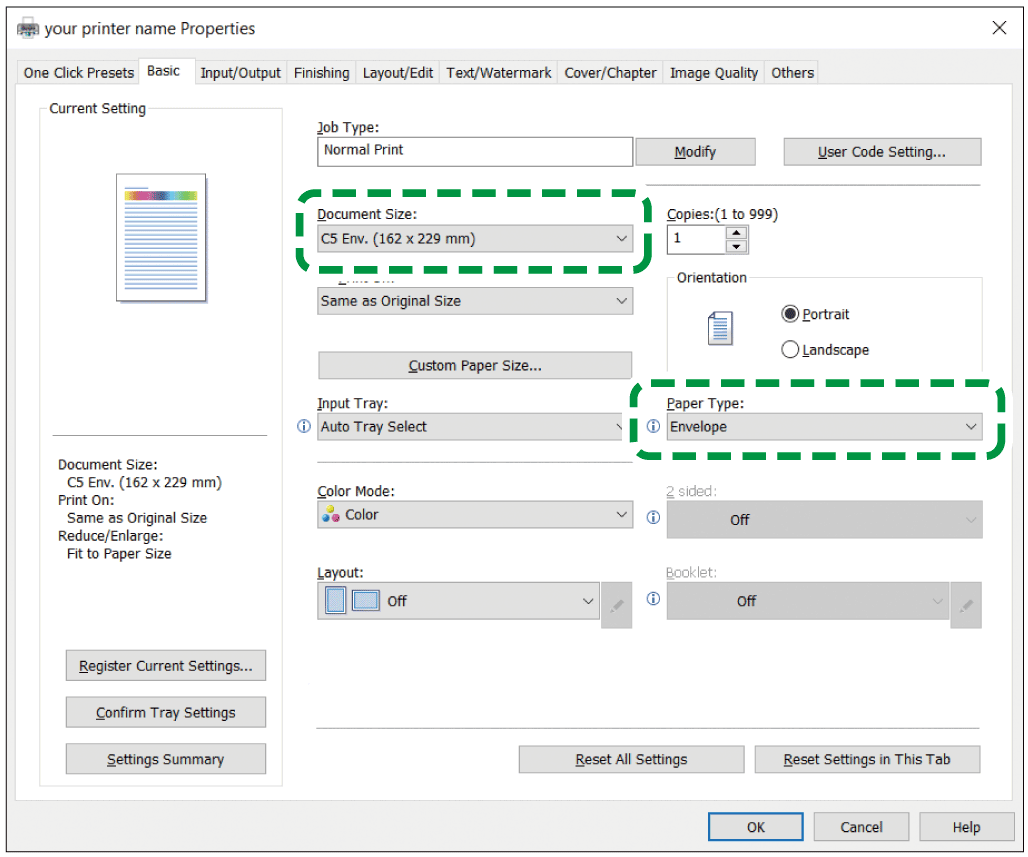
Specify the paper size and paper type.
Windows
-
Document Size: Select the envelope size. If the envelope size is not included among the options, enter the value in [Custom Paper Size...].
-
Paper Type: [Envelope]
You can specify a custom paper size, which is commonly used as the option of the Document Sizes.
See "Printing on Custom-sized Paper Loaded on the Bypass Tray", User Guide in English.
To print in landscape orientation, select the [Rotate by 180 Degrees] check box on the [Input/Output] tab, and then print.
macOS
-
Paper Size: Select the envelope size. If the envelope size is not included among the options, select [Manage Custom Sizes] and enter the value.
-
Paper Type: Envelope
To print in landscape orientation, select [On] for [Rotate by 180 degrees] in [Basic] in "Feature Sets".
-
-
Execute printing.