Connecting to the Machine from a Mobile Device Using the Wi-Fi Direct Function

-
The optional wireless LAN board is required to use this function.
Wi-Fi Direct has two operation modes.
Direct Connection: Group Owner Mode
The machine functions as an access point and can be detected by multiple mobile devices.
Direct Connection Mode
The machine is connected directly with one mobile device.
Connecting to the Machine Directly from a Computer or Mobile Device

-
Use RICOH Smart Device Connector to use the machine from a mobile device.
Using the Machine Functions from a Mobile Device
Enable Direct Connection: Group Owner Mode, and then connect a mobile device to the machine.
-
Press [Settings] on the Home screen.
-
Press [System Settings].

-
Press [Network/Interface]
 [Machine: LAN Type] [Wireless LAN] [OK].
-
Press [Settings] on the Home screen to display the [Settings] screen.
-
Press [System Settings]
[Network/Interface] [Machine: Wireless LAN] [Communication Mode]. -
Select [Direct Connect.: Grp. Owner Mode], and then press [OK].
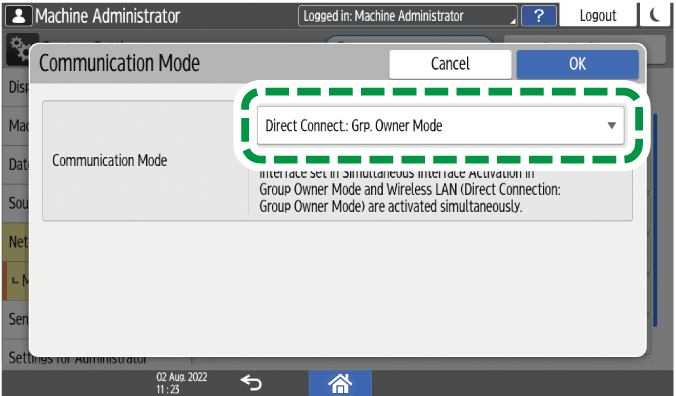
The settings are completed. Now connect the mobile device to the machine.-
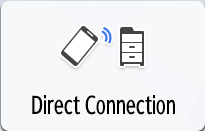
If the mobile device supports Wi-Fi Direct or WPS (Wi-Fi Protected Setup), specify it by [Wireless LAN: Direct Connection].
-
If the mobile device does not support Wi-Fi Direct or WPS (Wi-Fi Protected Setup), specify it manually.
-
Connecting with Wireless LAN: Direct Connection
On the control panel of the machine, press [Wireless LAN: Direct Connection].
When the mobile device supports the push button system
On the control panel of the machine, press [Connect] under "Push Button".
Launch the Wi-Fi Direct function or WPS function of the mobile device, and then connect it to the machine.
Select the machine from the device list.
If you cannot connect, perform [Enrollee] as described below.When the mobile device supports the PIN code system
On the control panel of the machine, press [Connect] under "Enrollee".
Launch the Wi-Fi Direct function or WPS function of the mobile device, and then connect it to the machine.
Enter the PIN code displayed on the control panel of the machine in the mobile device. For how to enter the PIN code, refer to the operation manual of the mobile device.After completing the procedure, press [Home] (
).
If you cannot connect, perform the manual connection procedure as described below.
Connecting manually
Press [Direct Connection] on the Home screen.
If the icon is not displayed on the Home screen, add the icon from the application list screen.
Adding a Frequently Used Application or Widget to the Home ScreenOn the "Direct Connection" screen, confirm the network name and password for the machine.
In the wireless network settings of your smart device, select the network name of the machine and then enter the password.
Enter the password you confirmed in Step 2.After completing the procedure, press [Home] (
To change your password, press [Settings]
Enable Direct Connection Mode, and then connect a mobile device to the machine. You cannot connect from a mobile device that does not support Wi-Fi Direct.
-
Press [Settings] on the Home screen.
-
Press [System Settings].
-
Press [Network/Interface]
[Machine: LAN Type] [Wireless LAN] [OK]. -
Press [Settings] on the Home screen to display the [Settings] screen.
-
Press [System Settings]
[Network/Interface] [Machine: Wireless LAN] [Communication Mode]. -
Select [Direct Connection Mode], and then press [OK].
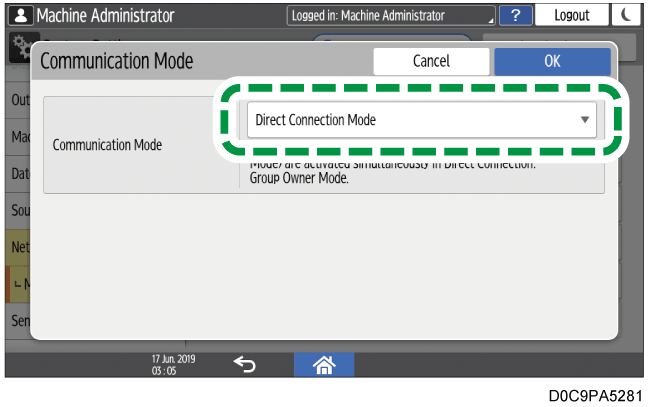
-
Press [Wireless LAN: Direct Connection].
When the mobile device supports the push button system
-
On the control panel of the machine, press [Connect] under "Push Button".
-
Launch the Wi-Fi Direct function or WPS function of the mobile device, and then connect it to the machine.
Select the machine from the device list.
If you cannot connect, perform [Enrollee] as described below.
When the mobile device supports the PIN code system
-
On the control panel of the machine, press [Connect] under "Enrollee".
-
Launch the Wi-Fi Direct function or WPS function of the mobile device, and then connect it to the machine.
Enter the PIN code displayed on the control panel of the machine in the mobile device. For how to enter the PIN code, refer to the operation manual of the mobile device.
-
-
After completing the procedure, press [Home] (
).