Printing Documents in Order of Priority
When there are two or more standby-to-print jobs, you can change their waiting order on the job list screen. Press [Check Status] to display the screen, and then change the print priority of the jobs on the [Current Job] tab.

-
You cannot change the order of the jobs being executed.
-
You cannot display the executing job list while performing Interrupt copy.
-
Jobs that are processed by the scanner or fax function are not displayed.
-
Press [Check Status].
-
Select the [Current Job] tab.
-
On the executing job list, select the function type of the document to print first.
Select [Copier/Doc. Srvr.], [Printer], or [Others]. -
Select the job to print first from among the jobs in the print queue, and then press [Change Order].
-
Press [
 Top]
 [OK].
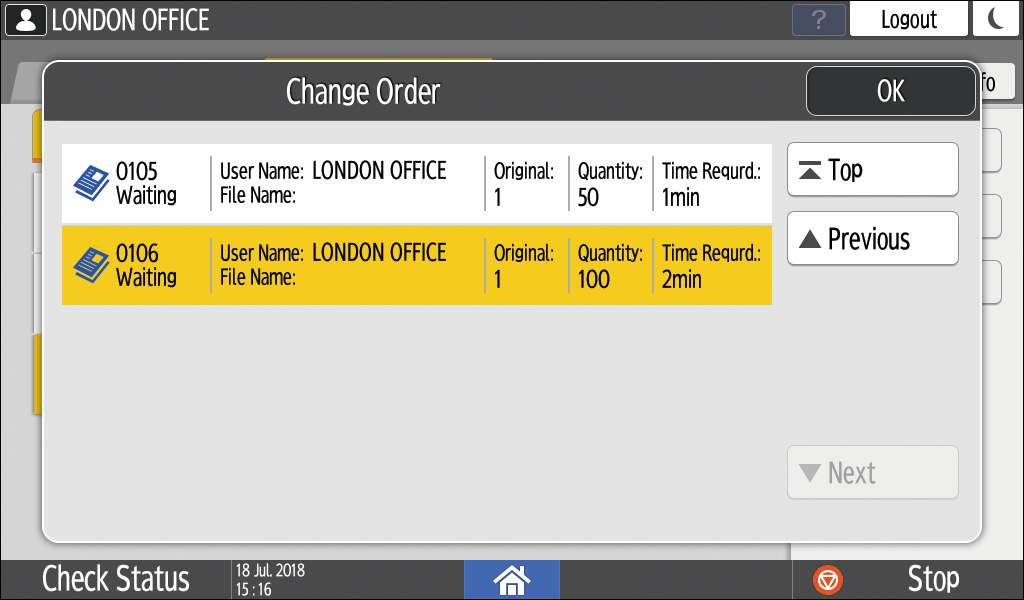
-
Press [Check Status].

-
You can change the order of the jobs on the job list screen. While printing is in progress, press [Stop] and [Display Job List] to display the job list screen and continue operation from Step 3.
-
Only the jobs of login users are displayed when user authentication is enabled.