Installing an Application from Application Site
Applications are available for expanding the functionality of the machine. You can install these applications from the control panel (Application Site).

-
The machine administrator, or a custom-privileges administrator that has equal privileges can install applications when administrator authentication is enabled.
-
Press [Application Site] on the Home screen.
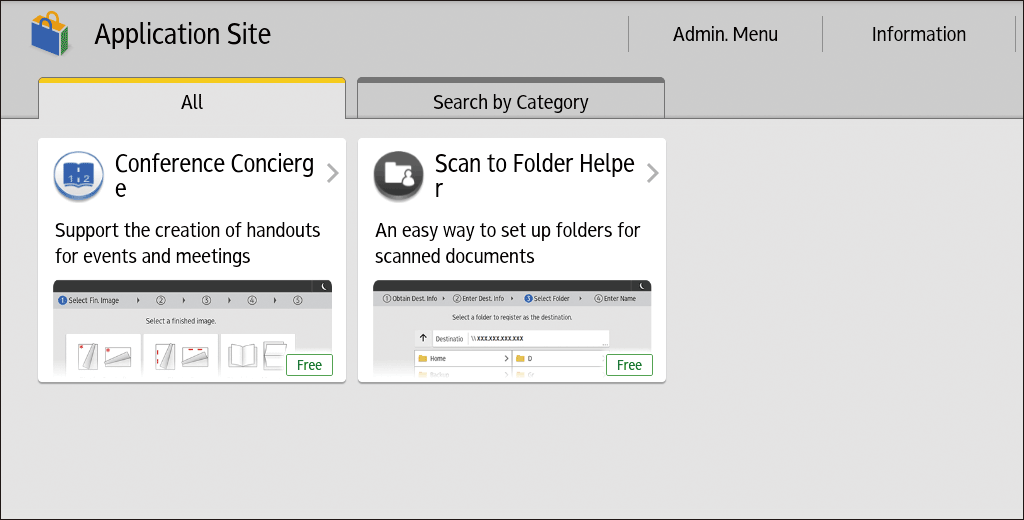
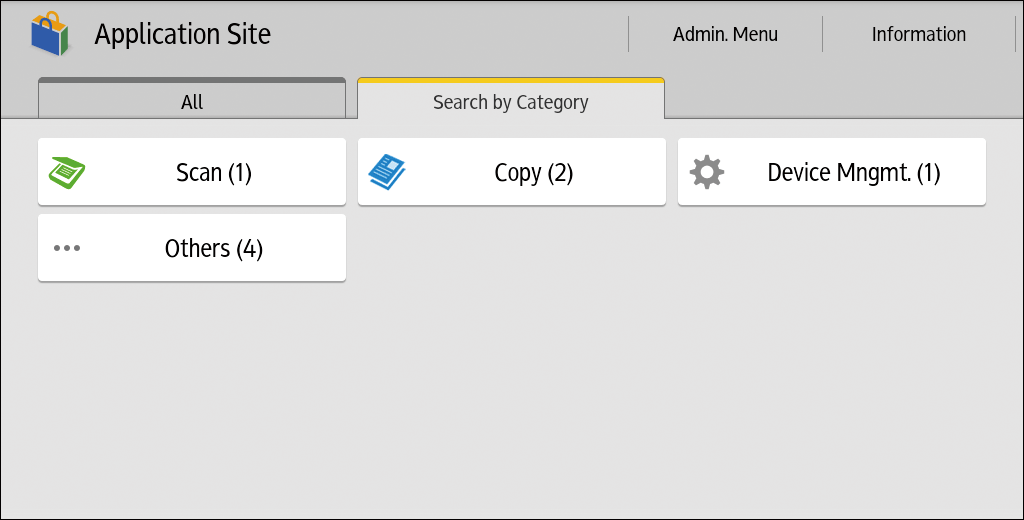
Press the [All] or [Search by Category] tab on the application list screen to change the displayed screen.-
Show All Applications.
-
Show the Applications in Separate Categories.
-
-
On the application list screen, select the application to install, and then press [Install].
If terms of service are available, carefully read them.
You may need to enter a product key to install some applications. -
Press [Close] after installation.
-
The contact information of the installed application is displayed on the screen of each application.
Use the following procedure when the latest version of an installed application is available:
-
Press [Application Site] on the Home screen.
If updates are available for some applications, a message is displayed in the upper part of the screen when displaying the application list screen. -
Press [Details].
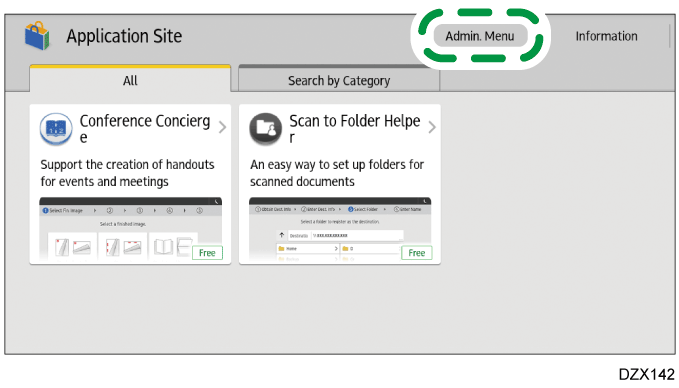
If the message disappears before pressing [Details], use the [Admin. Menu] ( ) displayed in the upper right part of the screen to display the update screen.
-
Press [Update] on the application to update.
To update all displayed applications, press [Update All]. -
Press [Close] after updating is completed.
Use [Admin. Menu] to uninstall an application.
-
Press [Application Site] on the Home screen.
-
Press [Admin. Menu].
-
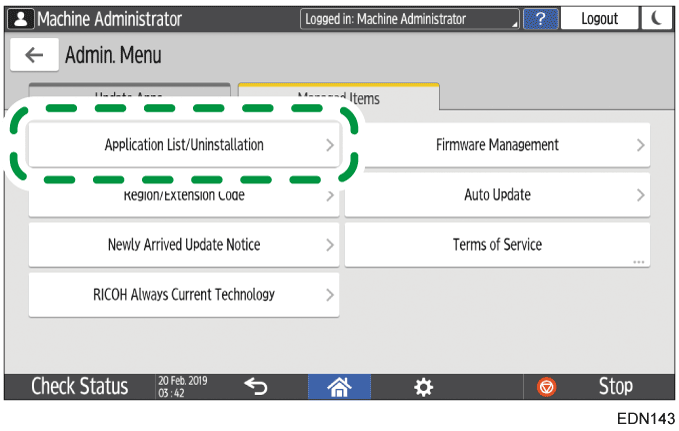
Select the [Managed Items] tab and press [Application List/Uninstallation].
-
Press [Uninstall] displayed next to the application to uninstall.
-
Press [Close] after uninstallation is completed.
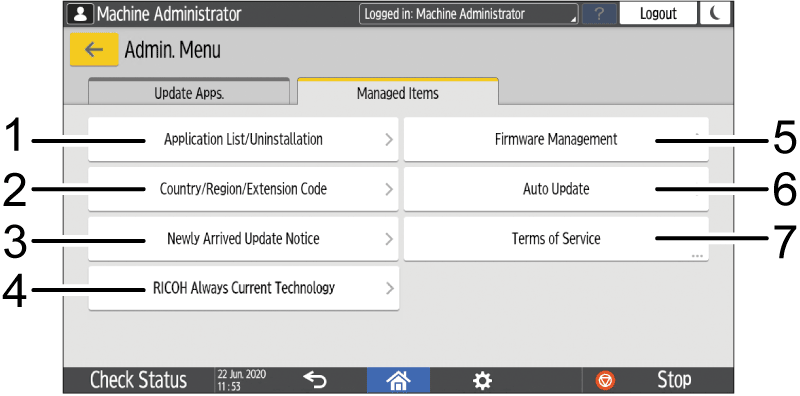
The items displayed on the screen vary depending on the version of RICOH Always Current Technology that is implemented on the machine.
|
Number |
Item |
Description |
|---|---|---|
|
1 |
Application List/Uninstallation |
Uninstalls an application. |
|
2 |
Country/Region/Extension Code |
Displays the screen that was displayed when the Application Site was accessed for the first time. You can specify the country, region, and extension code again. |
|
3 |
Newly Arrived Update Notice |
Specify whether to display a notification on the Home screen when a new application or update is available. |
|
4 |
RICOH Always Current Technology |
Specify whether machine functions are installed automatically. When this setting is disabled, you should install functions manually. |
|
5 |
Firmware Management |
Updates the firmware of the machine or reverts it to the previous version. You can set a time to delay the update up to 99 hours so the update is performed over the weekend or outside office hours. |
|
6 |
Auto Update |
Specify whether to update applications automatically. |
|
7 |
Terms of Service |
Displays the terms of service for accessing Application Site. |