Confirming and Handling a Document in the Fax Queue
The document stored in the memory of the machine after it has been scanned and until it is transmitted is referred to as a Transmission Standby File.
On the fax screen, you can perform the following operations on Transmission Standby Files:
-
Confirming/changing the destination
-
Changing the time specified for transmission
-
Printing the file
-
Deleting the destination
-
Canceling the transmission
A document that could not be sent because of a transmission error (unsent document) and documents waiting in queue for Forwarding are also included in the Transmission Standby Files.
|
Operation |
Document waiting in queue for Memory Transmission/unsent document |
Document waiting to be forwarded |
|---|---|---|
|
Confirming the destination |
|
|
|
Adding a destination |
|
- |
|
Editing a destination |
|
- |
|
Deleting a destination |
|
- |
|
Confirming the transmission document*4 |
|
|
|
Printing the transmission document |
|
|
|
Sending immediately |
|
|
|
Cancel Sending |
|
- |
|
Changing the time specified for transmission |
|
- |

*1 You cannot add a group destination.
*2 You can only edit the fax number or e-mail address or change the line to use for a destination entered manually.
*3 When all destinations specified for a transmission document are deleted, the transmission is canceled.
*4 You can confirm the scan date (received date for a document waiting to be forwarded), destination, number of destinations, number of pages in the original, document number, status and sender (only for a document waiting to be forwarded).
*5 You can change the setting for a document that was stored in the memory with the time specified for transmission.
-
Press [Fax] on the Home screen.
-
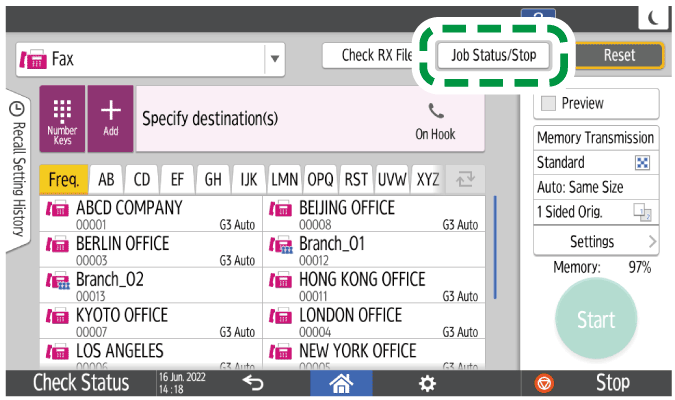
Press [Job Status/Stop] on the fax screen.
-
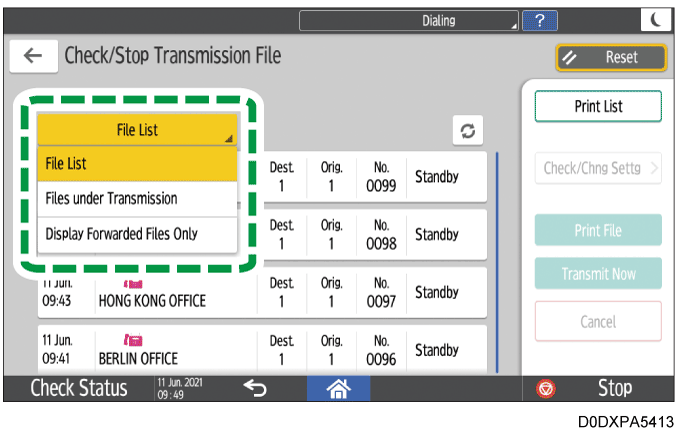
Press [Check/Stop TX File] and select [File List], [Files under Transmission], or [Display Forwarded Files Only].
-
Confirm or specify how to handle the Transmission Standby Files.
-
For a document specified with more than one destination, the destination specified first is displayed. Also, only the number of destinations of the unsent faxes is displayed in "Dest.".
-
The destination may be displayed as "*" and cannot be selected depending on the security settings.
-
See the table below for the procedure to confirm or specify how to process the Transmission Standby Files.
Confirmation or processing
Steps
Confirming the destination / printing the document
Select a document and then press [Check/Chng Settg] or [Print File].

Adding a destination
-
Select the document to add a destination and then press [Check/Chng Settg].
-
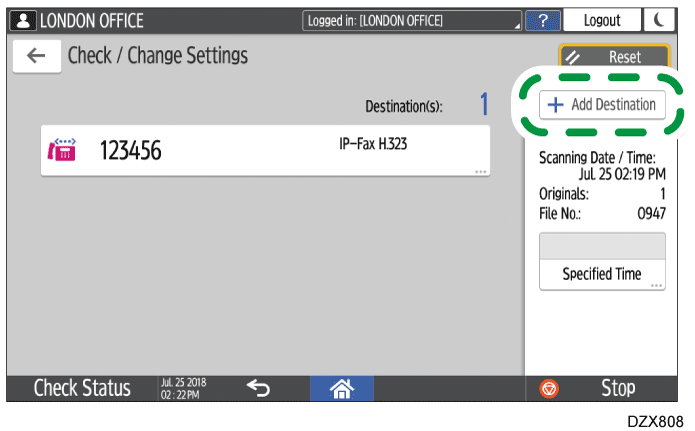
Press [Add Destination].
-
Select or manually enter the destination to add and press [OK].
The destinations that are already specified are grayed out.
You cannot add a destination if you have disabled broadcasting.
Editing the destination manually entered / deleting a destination
-
Select a document to change the destination and then press [Check/Chng Settg].
-
Select the destination to edit or delete.
-
Specify [Edit Destination] or [Delete Destination].
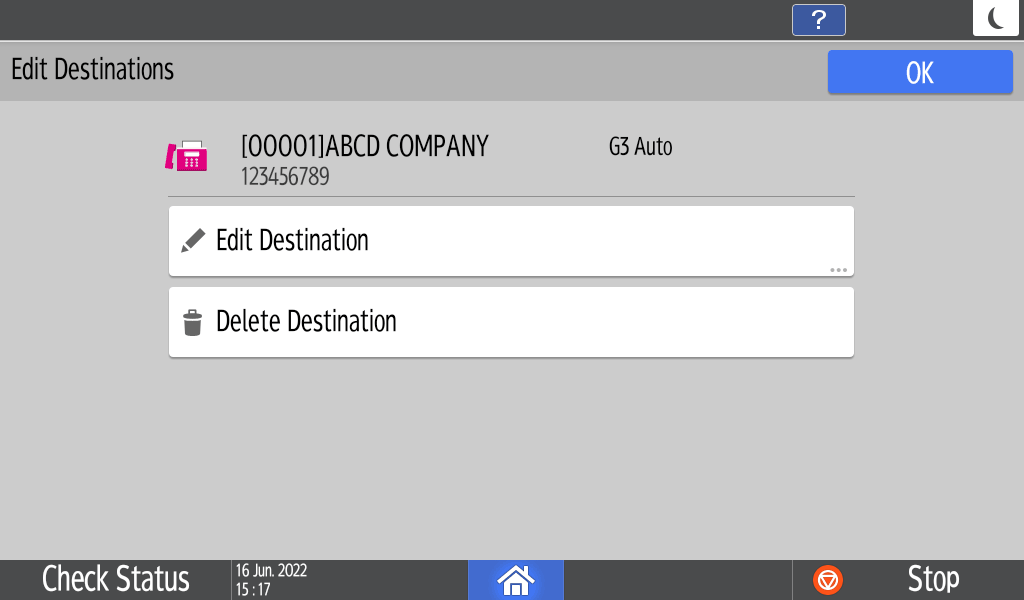
You can only edit a destination that was entered manually.
Canceling transmission / sending document immediately
Select the document to cancel transmission or send immediately and press [Cancel] or [Transmit Now].
Pages on which transmission is completed may not be canceled depending on when you cancel transmission.
Resending the unsent document
Select a document whose status is "Failed" and press [Transmit Now].
The document is deleted in the memory and from the Transmission Standby File list after resending the document is completed.
Changing the time specified for transmission
-
Select the document to change the time specified for transmission and then press [Check/Chng Settg].
To cancel the specified time and send the document immediately, press [Transmit Now]. -
Press [Specified Time].

-
Specify the time and press [OK].

-
-
Print the list of transmission standby files to check for the specified destinations, the pages that are not yet transmitted, and the transmission result.
-
Press [Fax] on the Home screen.
-
Press [Job Status/Stop] on the fax screen.
-
Press [Check/Stop TX File] and press [File List] or [Files under Transmission].

Forwarding documents are not printed in the list. -
Press [Print List] and then press [Print] on the confirmation screen.