Deleting the Printer Driver (macOS)
-
Click [System Preferences] on the Apple menu.
-
Click [Printers & Scanners].
-
Select the machine you want to delete, and then click "
 ".
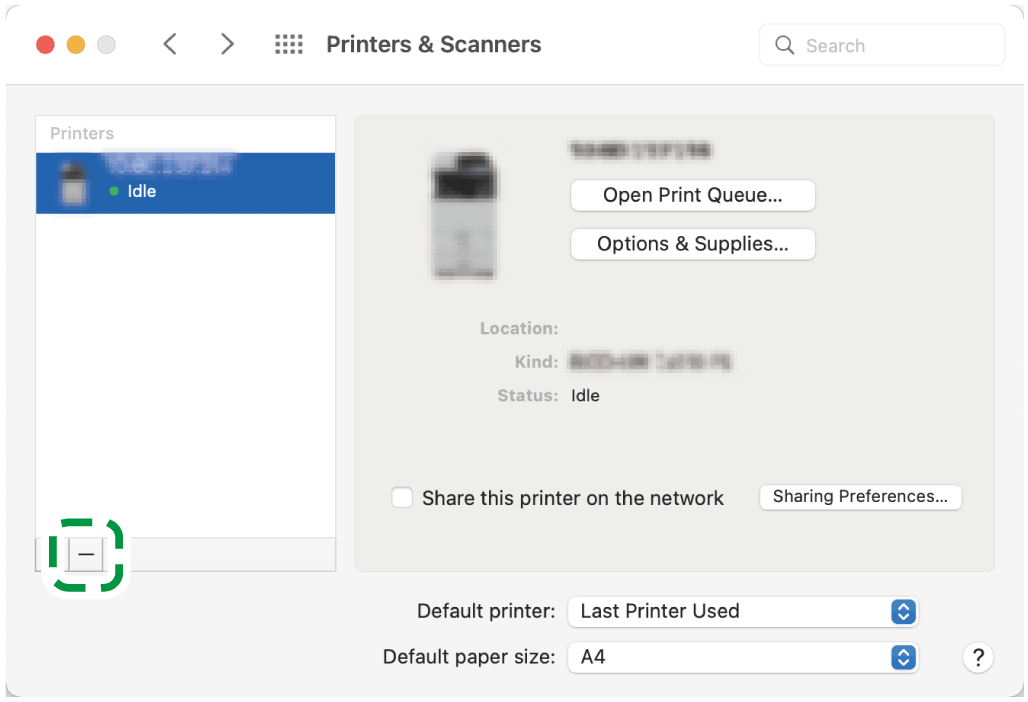
-
Click [Delete Printer].
-
Close the system preferences.
-
Start the Finder.
-
On the menu bar, click [Go]
 [Go to Folder].
-
Enter the location where the PPD file is installed, and then press Enter.
-
Enter "/Library/Printers/PPDs/Contents/Resources/".
-
-
Delete the PPD file of the machine (XXX.gz).
"XXX" is the model name of the machine.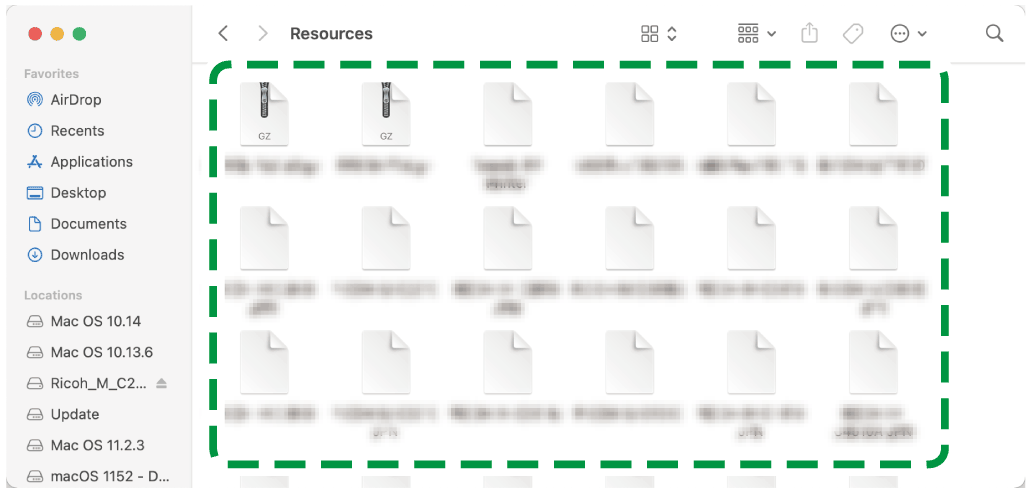
-
Close all of the screens, and then restart the computer.
The printer driver will be deleted.