Managing Folders as a File Administrator
File administrator or a custom-privileges administrator who has privileges equal to the file administrator can manage password-protected user folders.
The file administrator can delete unnecessary folders, change the password of a user who forgot it, and unlock a folder if it is locked by accidental operation.
-
Log in to the machine as the file administrator.
When custom-privileges administrators are registered, you can also perform operations by logging in as a custom-privileges administrator who has File Operation privileges.
For details about the file administrator and custom-privileges administrator, see the following section:
Registering Standard-Privileges Administrators
Registering Custom-Privileges Administrators -
On the Home screen, press [Document Server].
-
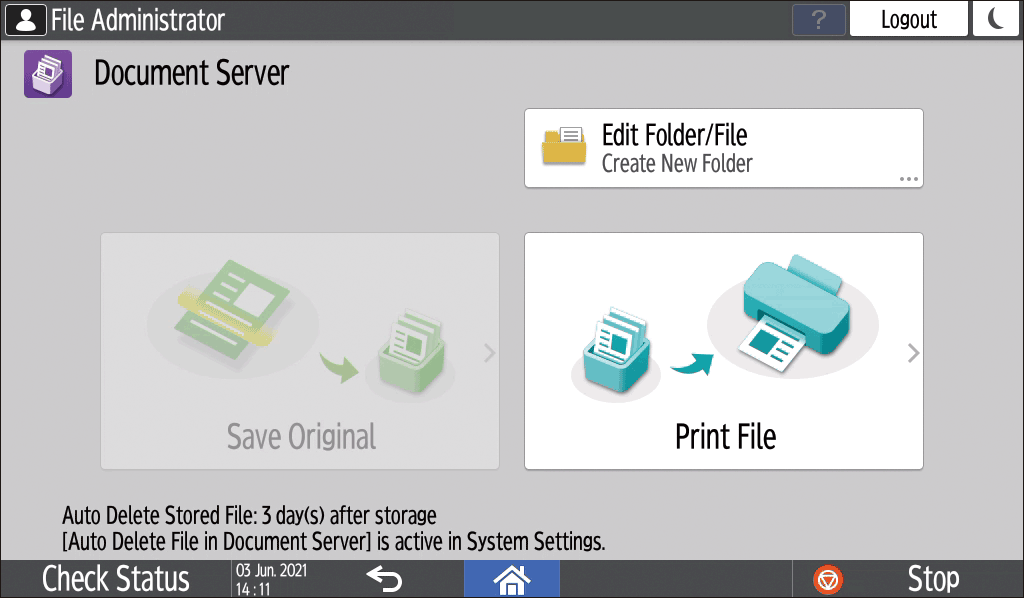
On the document server screen, press [Edit Folder/File].
-
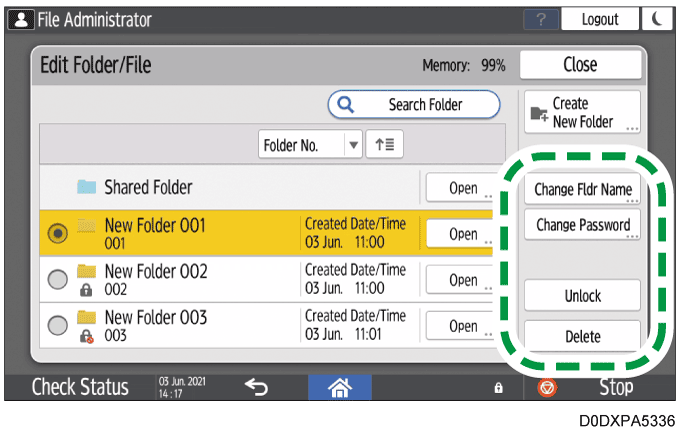
Select the desired folder, and press the operation key.
-
Press [Search Folder] to search for a folder by folder name or number.
-
 is displayed for password-protected folders.
-
You can operate the following items.
-
Change Fldr Name Changes the name of a folder.
-
Change Password: Enter a new password.
-
Unlock: Unlocks the locked folder.
 is displayed for a locked folder. When the document is unlocked, changes to .
-
Delete: Deletes the folder. When you delete a folder, all documents in the folder are deleted.
-
-
-
After completing the operation, press [Close].
-
Press [Home] (
 ).
-
Log out of the machine.

-
User folders can be accessed from Web Image Monitor. Log in to the machine as the file administrator or a custom-privileges administrator who has privileges equal to the file administrator, and then perform the required operations.
Accessing Documents in Document Server from a Web Browser