Folding Copied Sheets
The machine folds and finishes copied sheets. The fold function helps you to make booklets or brochures.
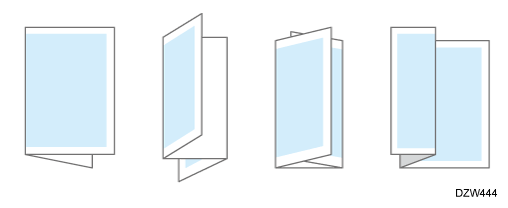
You can select Half Fold, Letter Fold-out, Letter Fold-in, or Z-fold.

-
An optional unit such as the booklet finisher or internal multi-fold unit is required to use this function.
Copy Function -
Do not use the fold function with the following types of paper:
-
Thick Paper*1
-
Label Paper
-
Envelope
-
Coated paper
-
Thin Paper:52–59 g/m2 (Approx. 14–15 lb. Bond)*2
*1 When using Booklet Finisher SR3350, you cannot use the fold function with Thick Paper 3 or 4.
*2 Only the Booklet Finisher SR3350 or internal multi-fold unit
-

-
The types of fold, number of sheets to fold, and supported paper size differ depending on the optional equipment attached to the machine.
List of Specifications -
You can specify the fold-back position.
Fold/Booklet -
When using Booklet Finisher SR3350 or Finisher SR3340, you can staple Z-folded copies. For details about the number and the paper sizes of Z-folded copies that can be stapled, see the following section:
Specifications for Booklet Finisher SR3350
Specifications for Finisher SR3340 -
Even if you place different size originals in the ADF, appropriate size of copy paper can be automatically selected and Z-folded using the Mixed Sizes mode and Auto Paper Select function.
-
When you copy different size originals, such as A3 and A4 (11 × 17 and 81/2 × 11), use this function with Mixed Sizes mode. Copies of the large size original are Z-folded and will be the same size as the copy of the small size original. Paper sizes you can use together are as follows:
-
A3
 and A4

-
B4 JIS
and B5 JIS -
11 × 17
and 81/2 × 11
-
-
When you select Half Fold, Letter Fold-out, or Letter Fold-in, you cannot use the following functions:
-
Punch
-
Staple
-
-
Press [Copy] on the Home screen.
-
Press [Fold] on the Copy screen.
If the key is not displayed, select it from [Finishing].
For details about folding the copied paper in half with the booklet finisher by pressing [Center Folding], see the section below:
Folding the Copied Paper in Half -
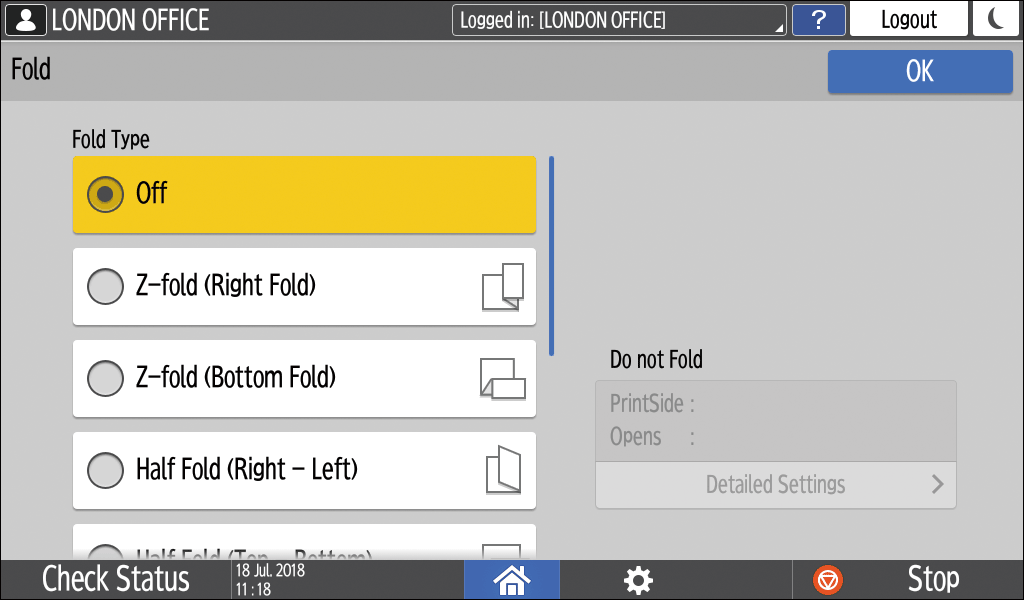
Select the fold type, and then press [OK].
-
When you selected Half Fold, press [Detailed Settings] to specify Print Side.
-
When you selected Letter Fold-in, press [Detailed Settings] to specify Print Side and Open Orientation.
-
When you selected Letter Fold-out, press [Detailed Settings] to specify Open Orientation.
-
You can specify whether to fold several sheets of stacked paper together in the following cases:
-
When the Booklet Finisher SR3350 is installed in the machine, press [Center Folding] for folding in half
-
When the internal multi-fold unit is installed in the machine, use Letter Fold-in or Letter Fold-out for folding
-
-
When you specify the multi-sheet fold function, the Mixed Sizes function cannot be used.
-
When the internal multi-fold unit is installed in the machine, if you try to fold more than the maximum number of sheets that can be folded, the warning screen appears. In [If Too Many Sheets for Multi-sheet Fold, Set], you can change the action that is taken if the number of sheets that can be folded is exceeded.
Finishing
-
-
Place the original.
Basic Procedure for Copying Documents -
Press [Start].